Outlook Crash Course

Quick Tip!
Use staff and students’ Ball State email addresses when you send emails and calendar invites or look up their schedules.
Helpful Staff for this Topic





Organization is key for all projects, and Digital Corps staff and students use Microsoft’s Outlook email and calendar to share information, schedule meetings, and manage work schedules.
Outlook Email
To access Outlook email go to outlook.office.com or go to my.bsu.edu and click on Outlook Webmail in the top banner.
The Digital Corps typically uses Slack channels such as #official-business and #all-corps to communicate important information. However, staff will occasionally send important emails from digitalcorps@bsu.edu or directly from staff’s emails, such as bhsmith@bsu.edu or ccoffman@bsu.edu.
Before the semester begins, the Corps sends emails to see what students did over the summer, to gauge interest in promotions, and to remind students to turn on their Slack notifications. Staff also send an email at the end of the academic year with a survey that asks students if they are interested in continuing work with the Digital Corps for the next academic year. The Digital Corps’ emails are important, so students should read them carefully! Additionally, students may need to respond or perform another action, such as fill out a document or submit a form.
Outlook Calendar
Adding Schedules
The Outlook Calendar allows students to add their class and work times. Add work hours by 8AM on the Monday of the current week, and mark class times as busy and work times as free. Make sure the calendar is set to EST, so everyone’s calendar will reflect the same time zone.
Students are required to send their calendar to the Digital Corps account and their Team Lead. After receiving a student’s schedule, they can click along the left side of the Outlook Calendar page to view it.
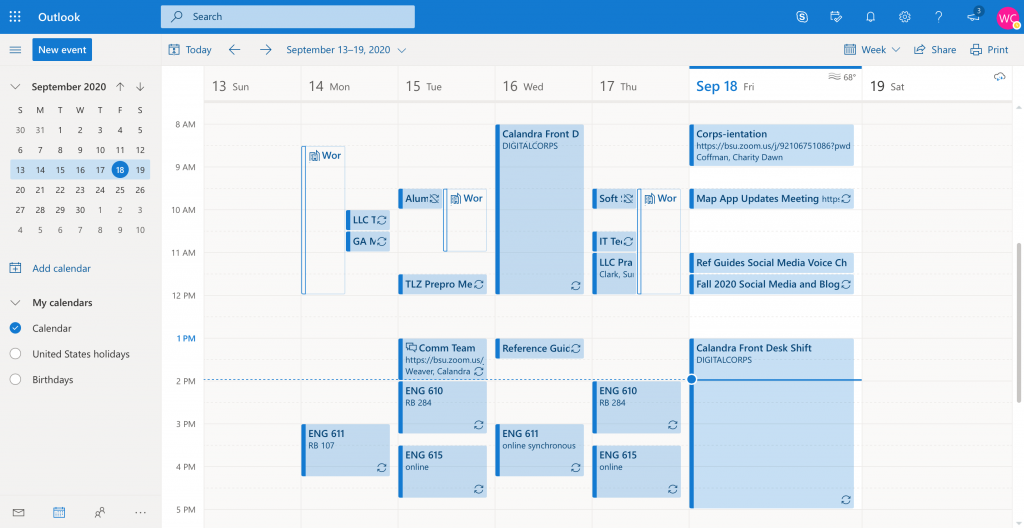
Receiving Calendar Invites
The Digital Corps uses Outlook Calendar to schedule meetings for projects, team meetings, and soft skills. Staff, the PM team, JPMs, and Team Leads send these calendar invites for meetings. Students should receive calendar invites in their Outlook email inbox. The invite should include any important information about the meeting, such as the physical location or Zoom link. Make sure to RSVP to meeting invites to notify the meeting organizer. Once accepted, Outlook will add the meeting to the calendar.
Scheduling Meetings
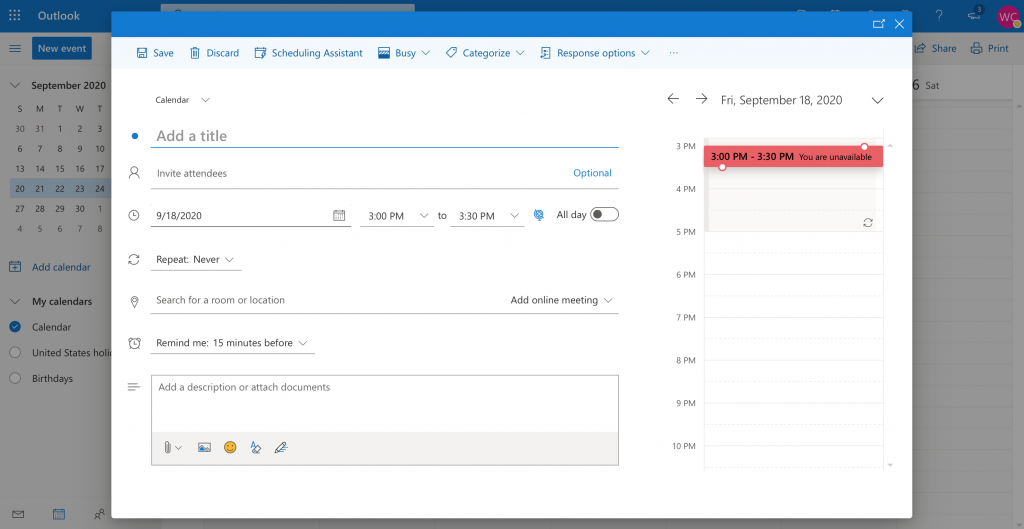
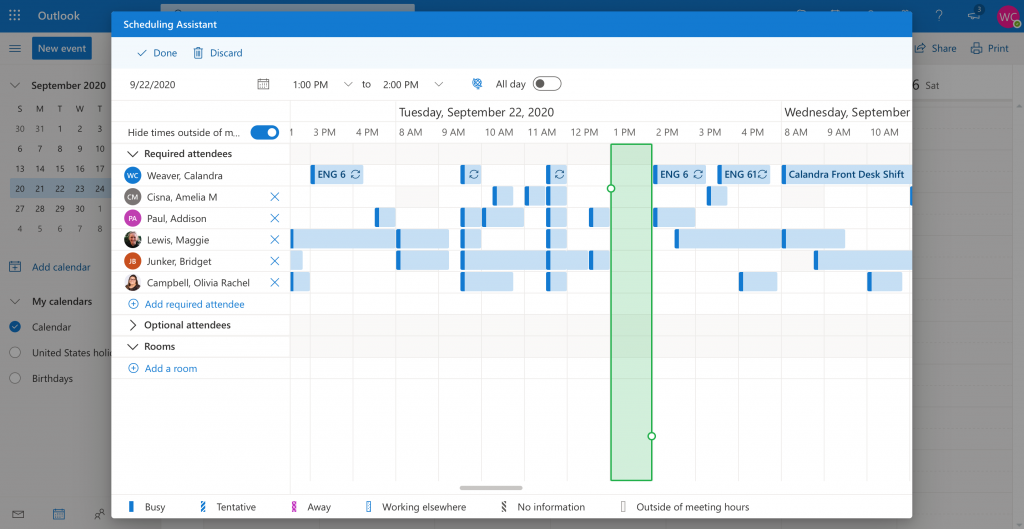
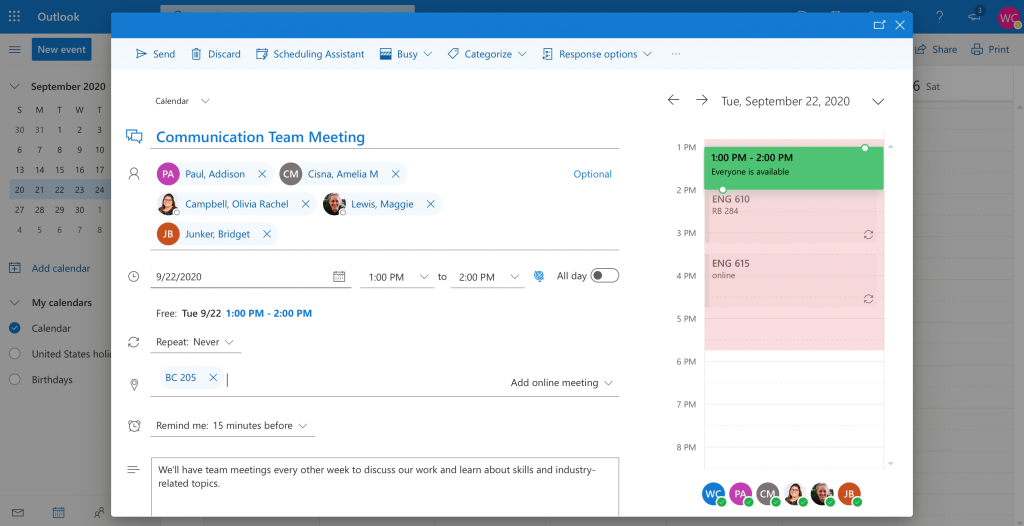
Students may need to schedule meetings with each other to work on projects, check-in, etc. To schedule a meeting, select New Event on Outlook Calendar, and then select Scheduling Assistant.
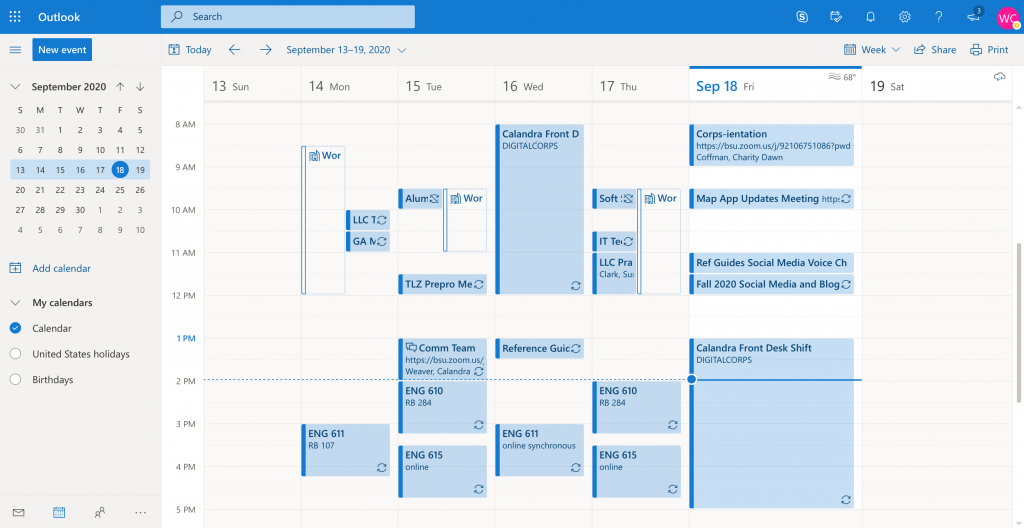
Add the required attendees email addresses to see the available times for everyone. Busy times show in blue whereas free times are blank. After choosing a time, select Done.
Finish filling out the appropriate information. Make sure to specify the meeting’s physical location or include a Zoom link. If an event occurs more than once, choose those specification by clicking the dropdown box next to Repeat. Finally, send the invite!
Those are the basics of Outlook. Basically, the Corps uses Outlook for communication and organization. Brandon and the PM Team are good references for Outlook questions, but the other staff are willing to answer questions too.
