Creating an Email Template

Quick Tip!
For a quick refresher on email marketing best practices, refer to Comm Team Training.
Helpful Staff for this Topic



One way the Digital Corps connects with its alumni base is through email campaigns. Mailchimp, an automated email marketing service, is used to create and distribute these newsletters.
Before you create a template, you need to sign up for a free account at Mailchimp.com. For security best practices, do not use your BSU account password – create a new strong password. After you create the account, notify the Comm Team Lead (in person or via Slack) so they can add your Mailchimp account to the associated Digital Corps account.
After you log in:
- Click Create in the upper left corner of the screen.

- Select Email.
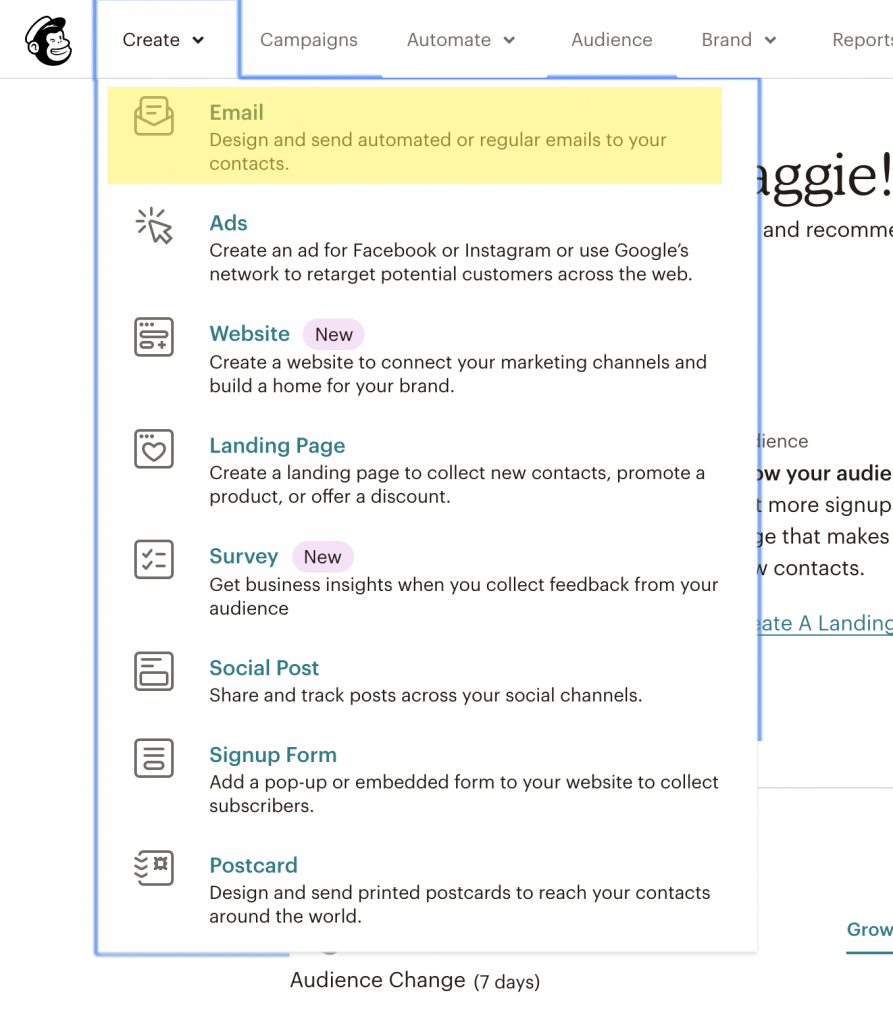
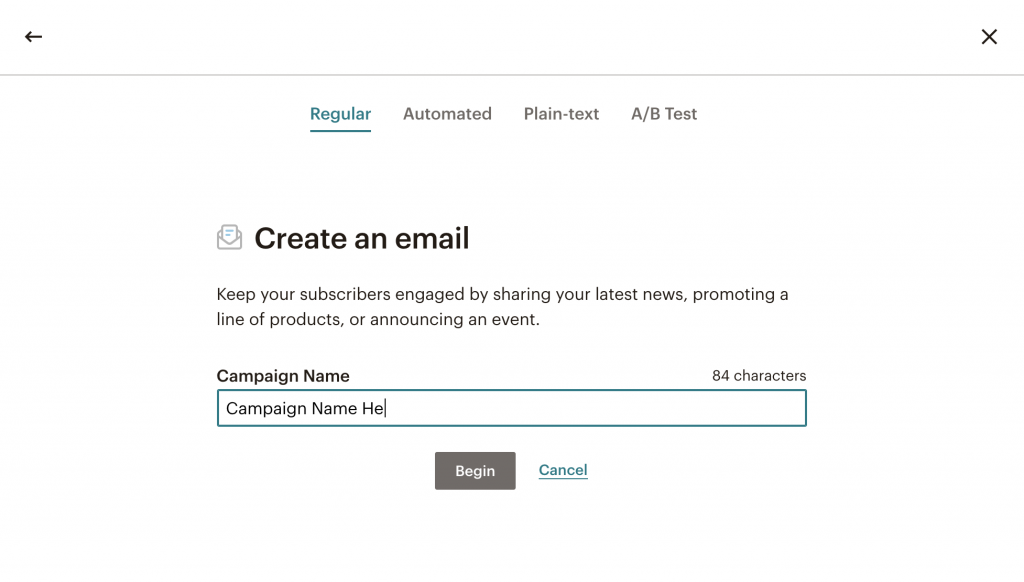
- In the popup box, name the campaign and click Begin.
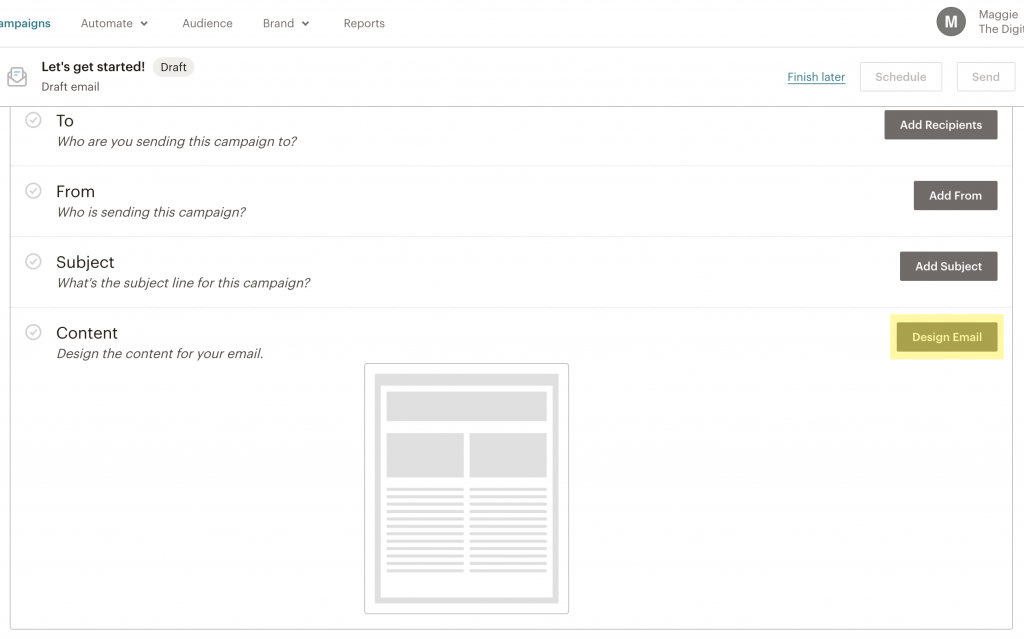
- Scroll down to the Content section of the email card and click Design Email.
There are two options to create a template: Layouts and Saved templates. You can choose either option, but each process is different.
Layouts
To create a template from scratch, click the Layouts tab. Then, choose one of Mailchimp’s layout options or scroll down and select a template based on the column design you want. With the layout selected, you can change how blocks are arranged and the type of content. The Style tab offers more in-depth editing options for the content blocks.
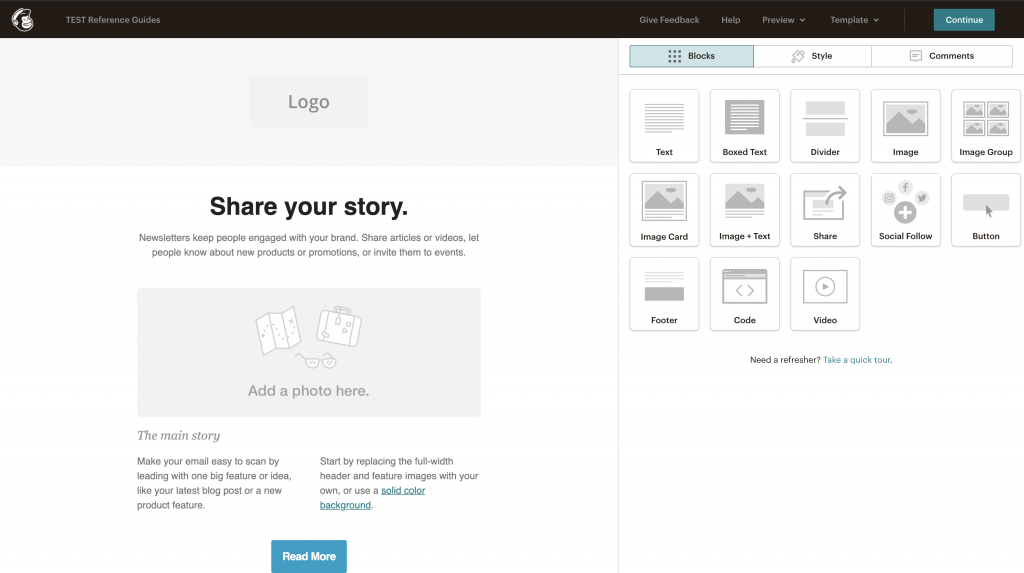
When you select an image for the header, make sure it will fit the header dimensions.
Quick Tip!
If you want a header that you cannot make yourself, talk to Riley, Brandon, or Josh to find someone on the Design Team with free time who can help.
Saved Templates
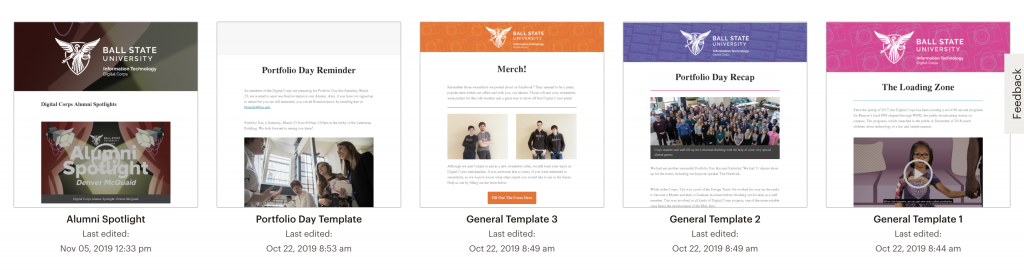
For a quicker template option, the Digital Corps has saved templates from previous email campaigns. To access these, click the Saved templates tab and choose from the options below. With a template selected, all you need to do is update the content inside the blocks.
After you create a template, send a test copy to Brandon and the Comm Team Lead to get extra eyes on it. After you address any feedback, Add Recipients to the email, make sure the From section says “Digital Corps”, and type a proper Subject Line.
Now the campaign is ready to send!
