Social Media Calendar Template

Quick Tip!
Scheduling social media content can be rough. Make sure to be consistent, focus on the message you’re trying to send on your platform, get involved with your followers, and analyze what works and what doesn’t.
Helpful Staff for this Topic

Staying organized is an integral part of any team, but working with different managers, forms of content, strategies, and campaigns can make posting on social media confusing and lead to ineffective communication. Social media calendars combat this problem. They provide more organized posting schedules, the ability to set and meet deadlines, and allow viewers to see what each manager is posting on their designated social platform.
How To Use the Social Media Calendar Template:
- Open the template and save a copy to use on a month-to-month basis.
- A designated Comm team member will be in charge of creating the calendar for each month. The new calendar will then be put into the Social Media project folder and other Comm team members will then be notified that it is ready for use and contain a link to the calendar.
- Navigate to the “Year” section on the calendar. Type in the current year. The template will automatically recognize monthly dates of the year selected.
- Navigate to the calendar “Month” section. Type the desired month in all caps into the cell OR select from a dropdown menu and choose the month you want to be represented in the calendar.
- Navigate to the “First Day of the Week” section and, if needed, adjust the day to when the Social Media Calendar should begin by typing in the full name of the day OR by selecting from the dropdown menu. The template default day for the beginning of the week is Sunday.
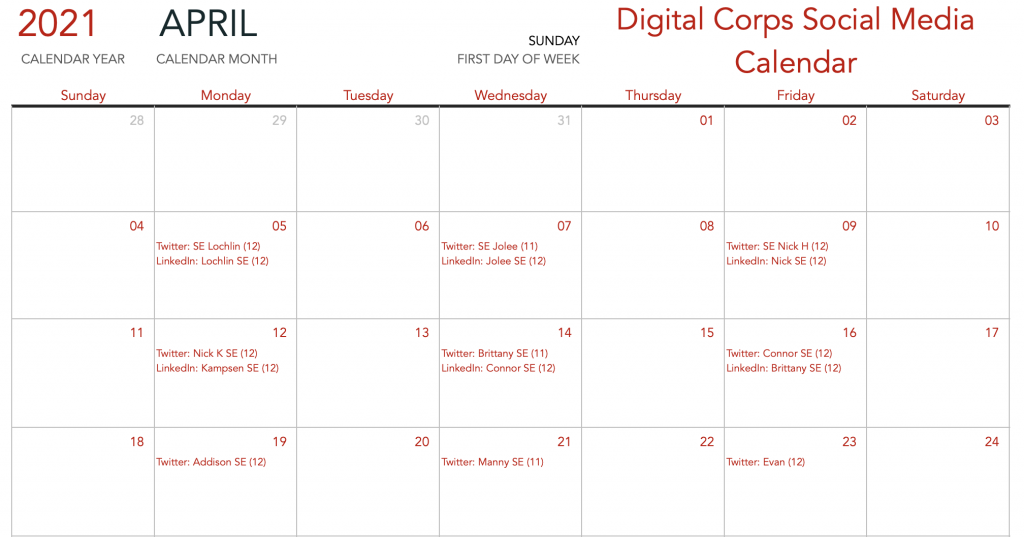
- Now that the calendar is numbered according to the year and month, you can begin adding content to your calendar. Double click on a cell for a specific day and add the platform, time, and theme of your post.
Additional Calendar Tools
The social media calendar template includes additional tools to help social media managers stay organized and timely, and to ensure staff and JPMS are up to date on important information.
Monthly Notes
For the Monthly Notes section, write down individual platform goals or overall social media goals. In the “Special Promotion” section, write down any key dates and descriptions to easily identify timely content (i.e., Website Through the Night, SuperParty).
Posting Schedule
The Posting Schedule is meant for individual platform managers to indicate the days they will post and the range of time in which they will post. This range is different from the specific times that would be on the calendar. For example, based on research, Twitter performs better on Monday and Thursday from 11am-1pm and this would be indicated in the posting schedule. However, the calendar itself will provide the time (i.e., 11:30 am) the post will go up on the social media platform. Overall, the posting schedule allows individual platform managers to write down the best range of time to post on our social media platforms. This allows for spread out content rather than posting at the same time on the days they need to post.
Overarching Strategy
All Corps social media platforms should have an individual strategy based on the overarching strategy set by the JPM. This section reminds platform managers of the Overarching Strategy they should uphold on their individual platforms.
Click the download button to download the social media calendar template to your computer. Now, you can start scheduling your posts!
