Creating Agendas with OneNote

Quick Tip!
With the shift to OneDrive, meeting notes will now be created and managed via OneNote.
Helpful Staff for this Topic

Before You Start Writing…
You will find the meeting notes document via the following file path:
Digital Corps Projects > Your Project Name > Documentation > Meeting Notes > OneNote File
If the project you are JPMing does not have a OneNote file yet, work with your PM to get it set up in the correct folder.
OneNote Structure
OneNote is organized with three layers: 1) the notebook, 2) a section within the notebook, and 3) a page within the section of the notebook.
Here is how meeting notes should be structured:
- Notebook = Project Name
- Section = Each Note-taker
- Page = Each Meeting
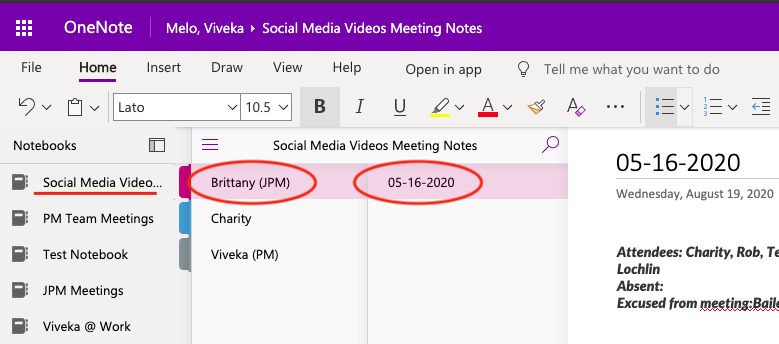
Let’s consider this example: the Social Media Video project team is meeting on 05-16-2020. The JPM is Brittany.
So, meeting notes would be found in the “Social Media Videos” notebook, you would navigate to Brittany’s section, and then select the “05-16-2020” page for that specific meeting.
As the JPM of a project, you should notify your team of where they should put their ‘next steps’.
Encourage team members to take their own notes, in their own pages. However, the “official” next steps should always be recorded in the JPM’s section of notes.
Agenda Template
The agenda template can be found here. To use it with OneNote, simply copy the contents of the word document and paste them into the desired OneNote page.
Be sure to use this date format for ALL page titles: MM-DD-YYYY
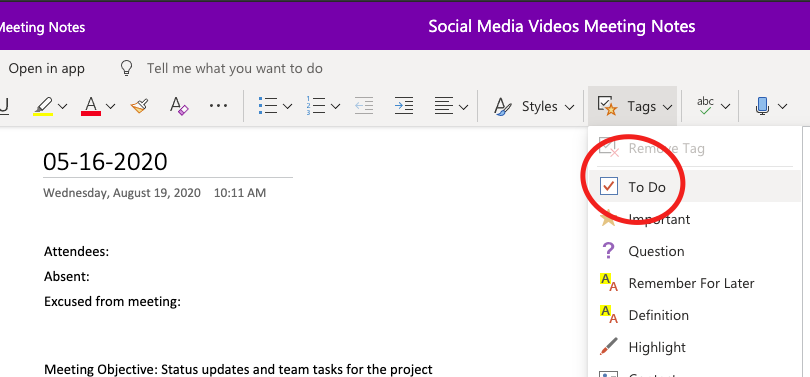
If you want to use checkboxes in your agenda, they can be set up once you have pasted your agenda into OneNote.
Preparing the Meeting Notes
In the Box Notes template, there are seven sections that must be completed.
Attendees
This section is used to record who attended the meeting. Include the names of every person in attendance, including staff, clients, or other guests.
Absent
This section is used to record who was not at the meeting and did not have a reason for missing.
Excused from Meeting
This section is used to record who did not attend the meeting but had an excused absence or were excused by the team lead or JPM.
Meeting Objective
This section is used to identify the purpose of the meeting. What needs to be accomplished by the end of the meeting? Consult the Project Manager or Junior Project Manager for help with this.
Topics to Cover
This section outlines the agenda for the meeting. These are things to be covered during the meeting, where general notes can be added underneath or at the bottom of the notes template.
Status Updates
This section is used to report on the effort of the team based on task assignments from the previous week. Next Steps from the previous week should be used as the baseline for expected deliverables, completed research, or in-progress activities.
Next Steps
During the last 3-5 minutes of the meeting, each team member must record their assignments for the coming week. This ensures everyone understands their tasks, provides an opportunity for the Project Manager and JPM to identify misunderstandings, and to maintain accountability. This will help to avoid confusion and uncertainty when it comes to job duties and expectations for the next meeting.
Determine what to put in the agenda
A successful meeting has an agenda and sticks to it. A successful agenda should outline the plan for the meeting. Notetakers may consult with the Junior Project Manager (JPM) on what is happening during the meeting. Writing down who attended the meeting, what’s on the agenda, and what to discuss is extremely important.
Determine what information is important
It can be difficult to determine what information in a meeting is important enough to include in the notes. As a best practice, the Digital Corps recommends that note-takers document the entirety of the meeting. However, if the conversation at the beginning or end of the meeting turns casual and does not pertain to the project, this does not need to be included.
Sharing Your Agenda
Agendas should be posted in the project Slack channel no later than 2 hours before the meeting.
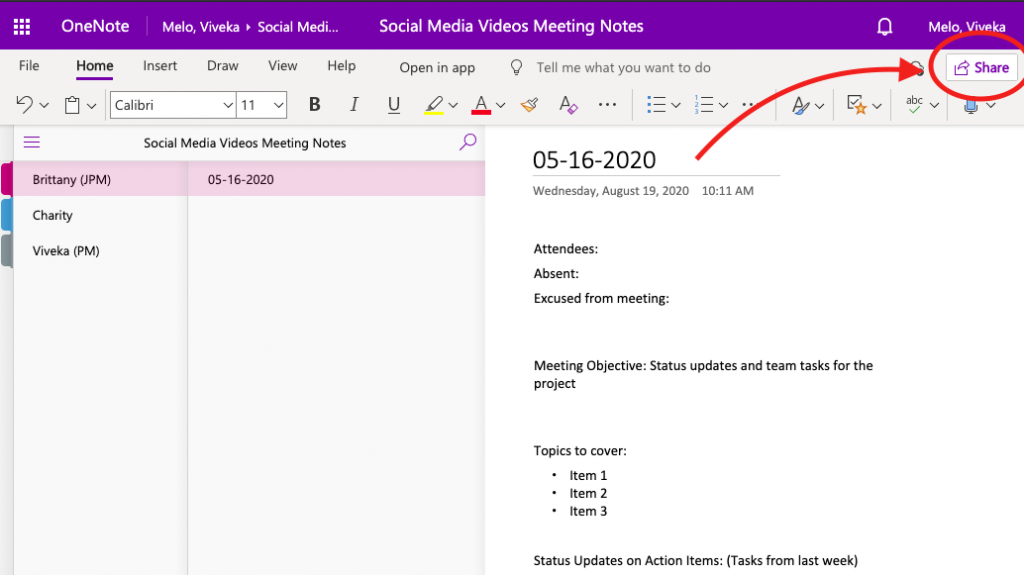
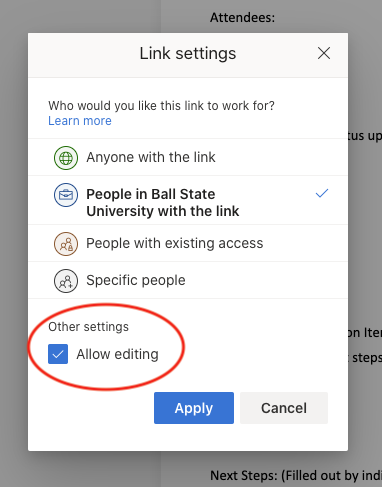
To share your agenda, follow these steps:
Press “Share”
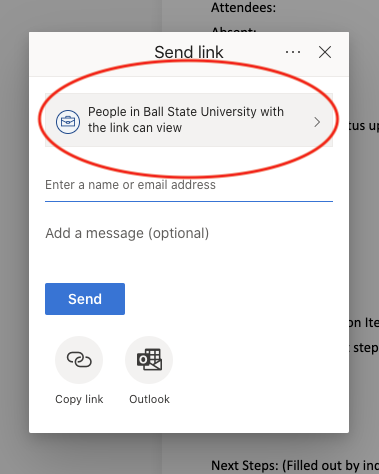
Allow Editing and Copy Link
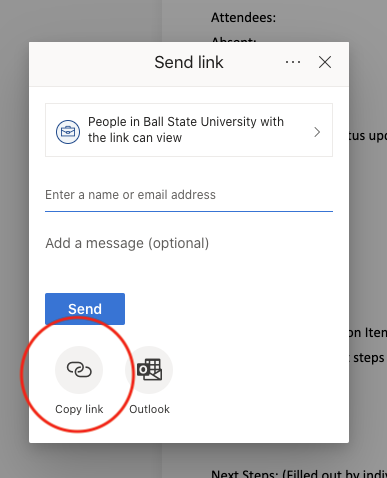
Post Your Link To The Channel
Questions? Comments?
If you have any questions regarding this agenda process, don’t hesitate to ask anyone on the PM Team.
If you would like to use the desktop version of OneNote, contact a member of the PM Team to help you install it on your computer.
