Pull Requests

Quick Tip!
Before creating a pull request into develop, make sure your branch is up to date so as to avoid merge conflicts.
Helpful Staff for this Topic

What Are Pull Requests
With Git, a pull command retrieves the code from a remote branch and merges it into your currently checked out local branch. Pull requests expand upon this concept and allow developers to submit their local changes to other developers to be reviewed and pulled into a specific remote branch.
At the Digital Corps, pull requests are used as the review process for the development team. All project work needs to be reviewed and pull requests establish a streamlined feedback loop for development projects.
A pull request begins when a developer has completed a feature on their local branch and it is ready to be merged into develop (or another remote branch.) They would submit the pull request with the changes they made to the project and assign other developers to review these changes. The reviewers can then leave suggestions regarding the quality of the code, point out bugs, and/or approve the changes.
Creating a Pull Request
Navigate to Azure Pull Requests
Digital Corps repositories can be found at the Azure DevOps dashboard. Navigate to your project’s repository on the dashboard.
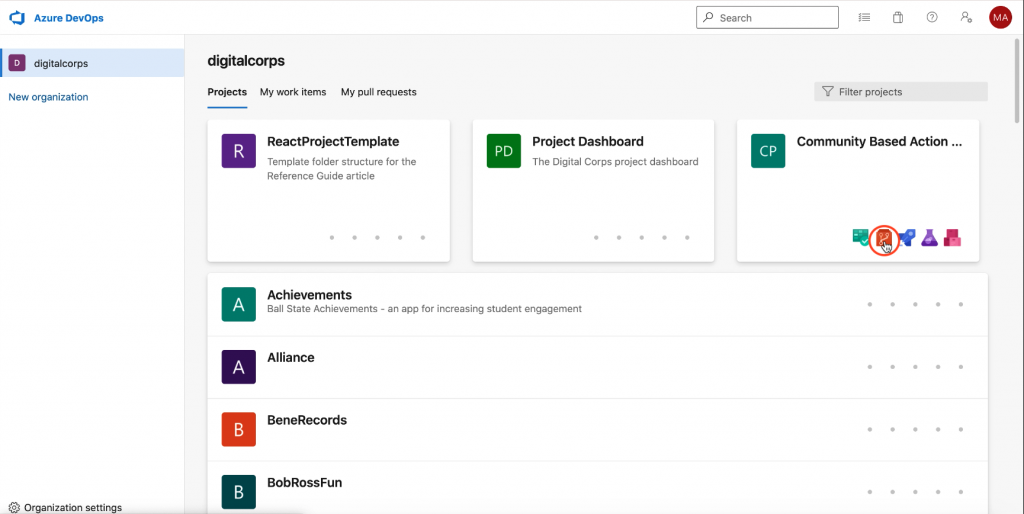
From there, you should be able to find the Pull Requests section under Repository on the left hand bar.
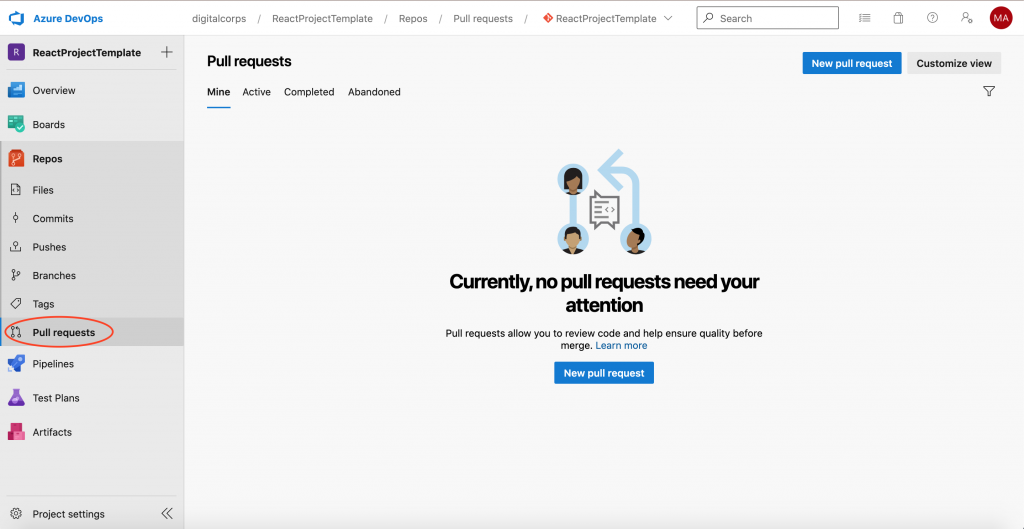
Start a Pull Request
Here, you can create a new pull request in two ways. You can either click the New Pull Request button or—if you’ve recently pushed changes to your remote branch—Azure will suggest creating one for that push.
Once you’ve started a pull request, you will be prompted to fill in the Title, Description, and Reviewers of the PR. Listed below are brief instructions for each field:
- Title: Descriptive of your branch/push
- Description: Use this field to summarize the changes you made and include any information or resources the reviewers may need to access the changes. Adding a screenshot of your work (when possible) is also recommended.
- Reviewers: Typically, two Development team members are assigned per request
Here is an example of a well-written pull request with descriptive fields and a screenshot:
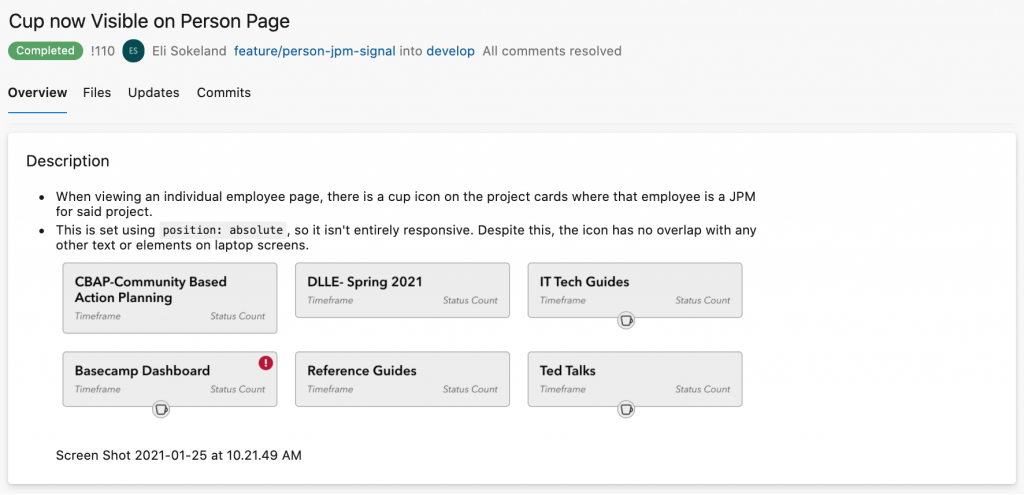
Notice that the pull request is made from the developer’s feature branch and to the develop branch. At the Digital Corps, most pull requests are made to the develop branch, unless otherwise decided for certain cases.
Merge After Review
Once the pull request has been reviewed, it will either be approved or you will have some comments that need to be resolved.
If it has been approved, and there are no merge conflicts, you can proceed with the merge by clicking the blue Complete button at the top right corner of your pull request page.

On the other hand, if you have any comments or merge conflicts that need to be resolved, you will need to begin by making the necessary changes on your local branch. Once you’ve completed that, you can push the changes to the remote version of your branch. Doing so will automatically update the code in the pull request.
Now that you’ve responded to the reviewers’ comments, you may reach out to them and request that they review the new changes before completing the merge. However, if it is a small change and does not need to be reviewed again, you can proceed with the merge. Once it is complete, you should delete the feature branch.
Reviewing a Pull Request
Navigate to the Pull Request
When you get assigned to a pull request, you will likely receive an email about it and can access its page through an attached link. You can also access the pull request through the project’s repository on Azure DevOps—as described above. There, you can see any requests you started or were assigned.
View the Changes
Once you’ve reached the pull request’s page, you can view the changed files, leave comments, and approve the pull request. However, before approving you should examine the changes on your local copy. To do so, switch to the pull request’s origin branch (either through your IDE or version control client) and review the new feature/functionality created in that branch.
For example, if a pull request was created to merge the branch home-page to develop, you would switch to the home-page branch on your local machine and view the website’s home page.
This way, you can easily take note of any features that are not rendering correctly or need adjustment.
Leave Comments
Once you’ve reviewed the code, you can return to the pull request page and leave comments accordingly. Navigating to the Files section will display all the files changed by the push. Here, you can leave comments on specific lines of the code.
Simply hover over the line you wish to comment on and a small comment icon will appear at the start of the line. Click the icon and enter your comment into the text field that appears.
Approve the Request
Lastly, after all the requested changes were resolved, you may approve the pull request and complete the branch merge. On the pull request page, click the Approve button on the top right.

This will alert the developer who started the request that you have approved it, and they may go back and complete the merge.
Pull requests provide an opportunity for code review and help maintain the quality of project features. Now that you are familiar with the steps of starting and reviewing a PR, you can begin to participate in development team pull requests.
