Prepping Design Work for Review

Quick Tip!
When you submit a design file for review, it is important that you submit the file as a PDF, JPG, or PNG. This will allow everyone in the review process to view the same file regardless of any changes made to the document after it is submitted.
Helpful Staff for this Topic


As you work on a design file, it is important that you prepare your file for review. Preparation ensures your file will stay consistent throughout the design process, making it easier for you and all of the reviewers to view the same file. Not only will the exported file stay consistent, but you will be able to easily navigate the file and make changes to elements within the document in a more efficient way.
Submitting Work for Review
Exporting as PDFs, PNGs, and JPGs
Before you submit design work into review, you must save the file as a PDF, PNG, or JPG. When you submit your file using one of these three formats, you will make the review process run more efficiently.
While some reviewers are able to easily view a file in software such as Illustrator or Figma, others may have difficulties. Along with this, when you submit a file as a PDF, PNG, or JPG, everyone in the review process will be able to view the same version of the file regardless of any changes that may have been made after the review was first submitted. If you submit an editable file for review, reviewers further in the process may see a version that differs from what was originally submitted. While you might not be able to save every file as one of these formats, it is a best practice to do so whenever possible.
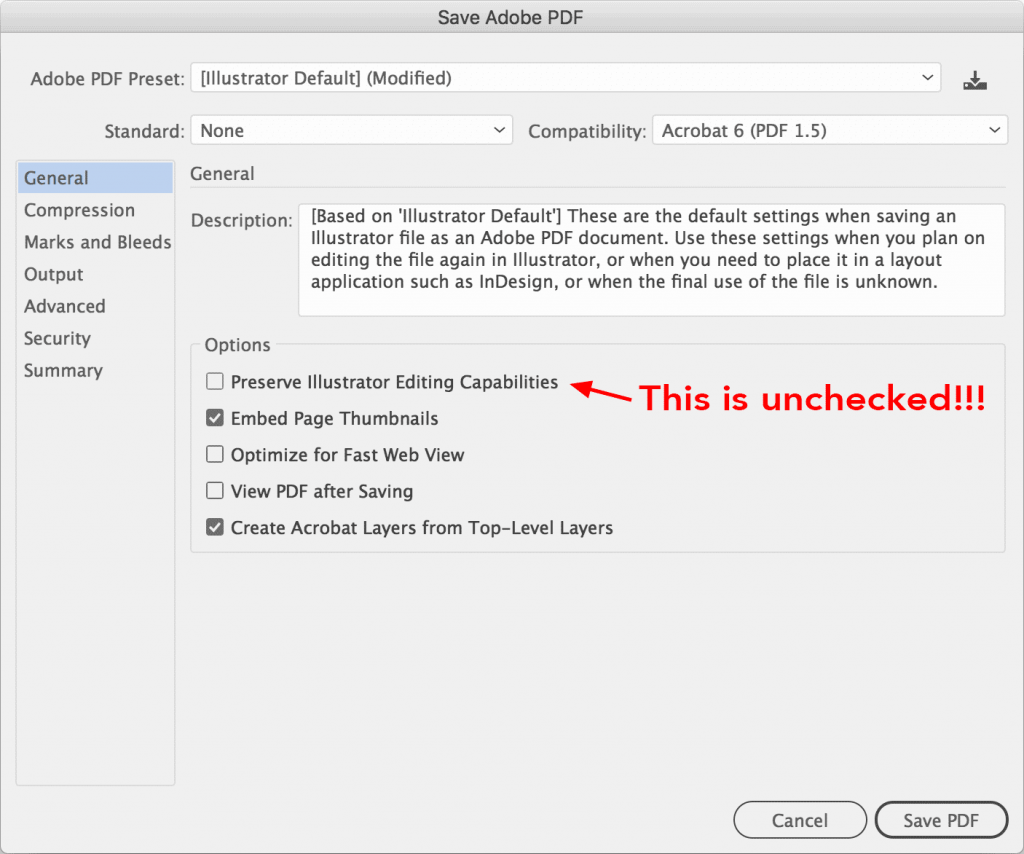
If you save an Illustrator file as a PDF, make sure that you uncheck the option that says “Preserve Editing Capabilities” when it is available. This will decrease the size of the file since the review process does not require reviewers to make changes to any work.

File Naming
Along with the file format, you should name the file in a way that is clear to understand. At the Digital Corps, there are many project tasks in which the Design Team works alongside other teams. For these projects, files are worked on, shared, and reviewed by all teams involved. In order to keep the files consistent and organized, you should follow the naming conventions that are used throughout the project.
The following images show how frames (artboards) in Figma were named in a past project to help match with the UX Team’s review plans.
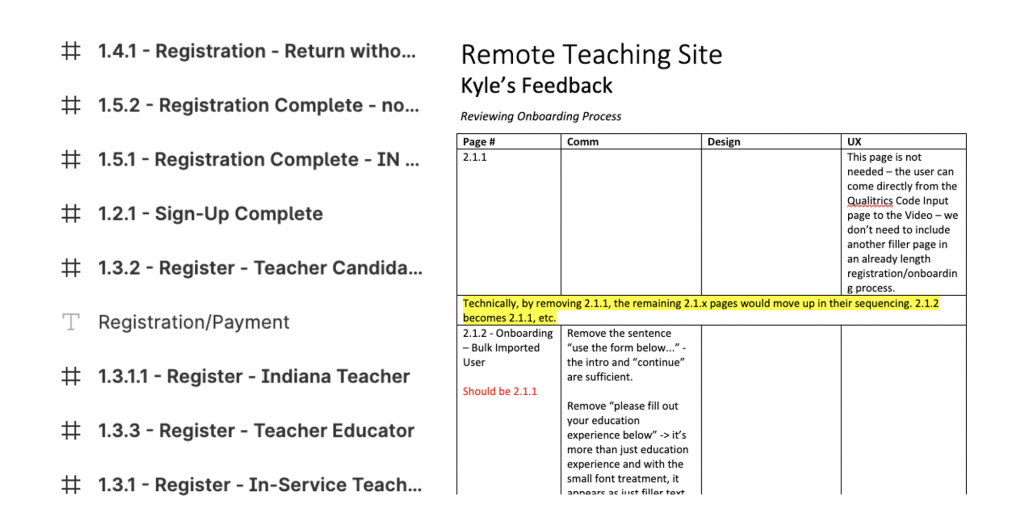
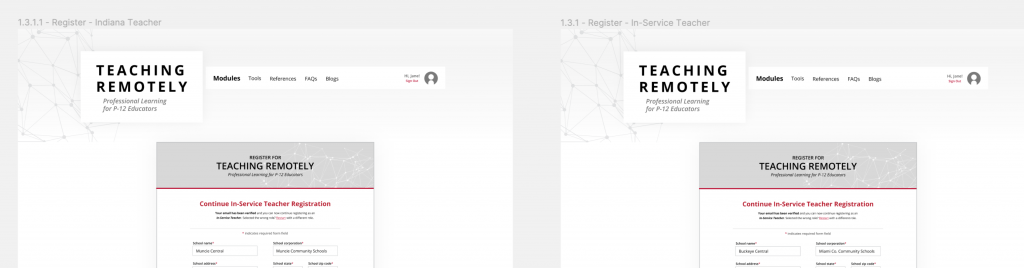
These images show the consistency of file naming conventions used on the Remote Teaching Site project. If the file you work on does not have prior naming conventions, use a specific, simple file name that describes the purpose of the file.
Delete Unnecessary Artboards
It is important that you export only the artboards which are needed for the review. You should delete any extra artboards which are not needed in the file. If you have unnecessary artboards that you may need at a later date, you can make a copy of the file which only contains the artboards that you need. By cleaning up your artboards, you will be able to submit only the work that needs to be reviewed.
If you only need to export a specific subset artboards for review, specify the artboard numbers in the Save As dialog boxes. You can find the artboard numbers in the Arboards panel.
Keeping Documents Manageable
Along with export formatting, file naming, and cleaning up unnecessary artboards, you can make your document file easier to export and make changes to by cleaning up and organizing the design elements within it. If you keep organization in mind as you work on your document, you will have an easier time prepping your work for review.
Document Layers
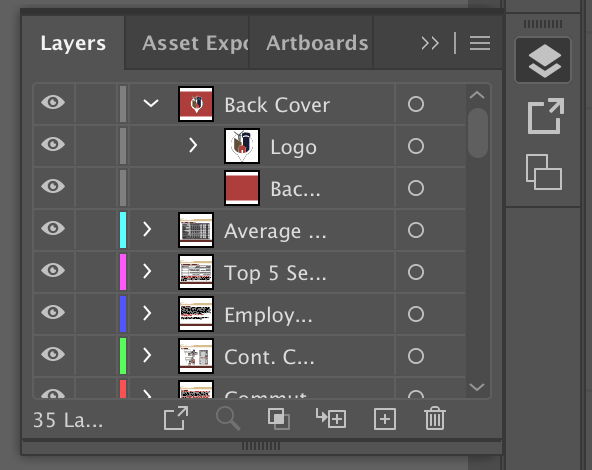
As you work on a file, it is important to name and organize the document layers. First, create layers for the different elements within the design. Next, name the layers according to the design elements they contain and delete any that are not used. When you create and name layers, you can easily locate elements within your design that you may need to change in the future.
Color Swatches
Regardless of the program you use, it is important to create and manage your color swatches. You should create a color swatch for every color you use within your document. This will allow you to have all of your colors stored in one accessible location. Delete any swatches you create but do not use to clean and save space within your file.
Paragraph and Character Styles
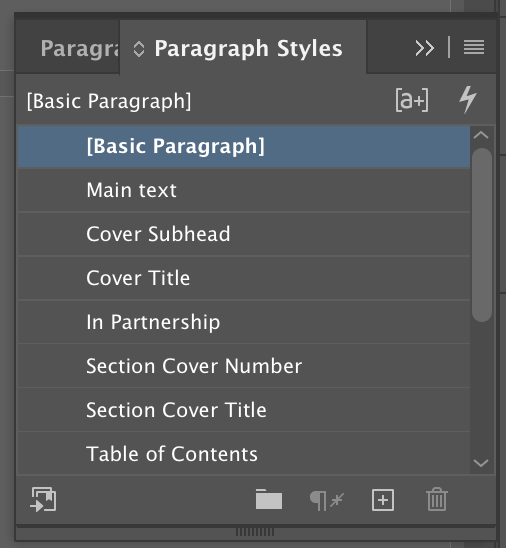
You can create paragraph and character styles within most design programs to keep your textual elements consistent throughout a document. Styles will allow you to edit the text size, color, font, and more of multiple textual elements at once. Make sure that you delete any styles you create but do not use. You will have a more organized document that you can easily edit in the future.
The best way to make it easy to export your designs for review is to keep your files clean and organized. Not only will you allow the review process to run smoothly, but you will make it easier to edit your files in the future.
