How to use the Equipment Checkout System

Quick Tip!
Equipment Checkout is a privilege of working at the Corps. It works like this:
- Make a reservation
- Check out the items
- Use the items
- Check in the items
- Rob is happy
Don’t know what to do or have a problem? Ask ASAP! Most issues can be solved quickly if the right people are notified.
Helpful Staff for this Topic


What is the Equipment Checkout System?
The Equipment Checkout System is a custom tracking system created by the Digital Corps that allows students to reserve video production equipment. It is integrated with Slack to notify users of changes to the equipment reservation or to remind them when equipment is due for check-in.
Making a Reservation
Reservations can be made on the Equipment Checkout Scheduler. This URL is not easy to find. Pro tip: bookmark this URL for future use. To reserve equipment, follow these steps:
Step 1
Login into the Equipment Checkout System with a Ball State username and password.
Step 2
The system will display a calendar for the week by default, but can be changed to month or day view as needed. Navigate forward and backward using the arrows in the top right of the window.
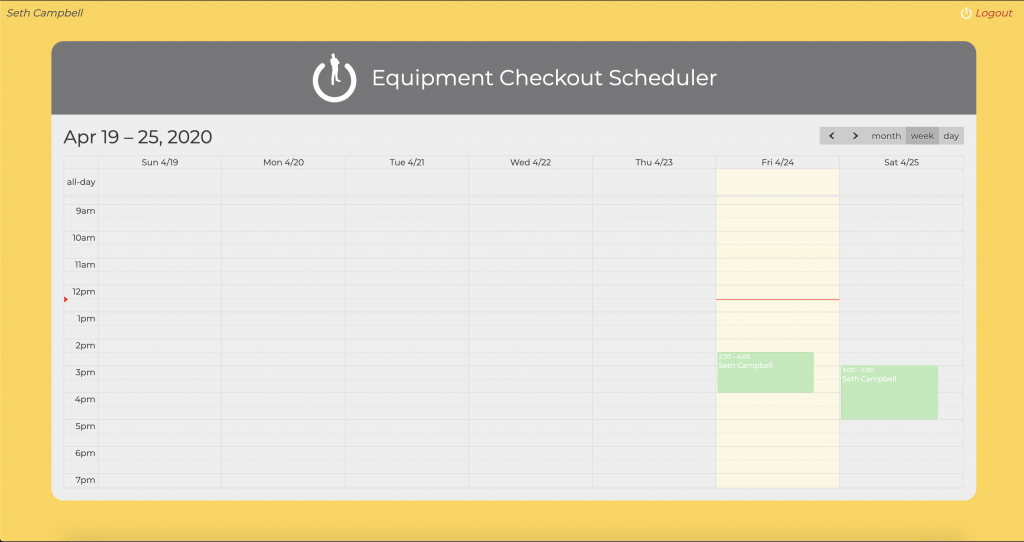
All reservations in the system will show up in this window. View the details of a reservation by clicking on it. Green blocks indicate reservations belonging to the logged-in user and red blocks belong to other employees. Reservation blocks that are dark red/green indicate Official reservations Corps projects at that time. Light red/green reservations are Personal and can be overridden by an official project at any time.
Quick Tip!
Don’t assume that a personal reservation is safe! Check with staff to identify potential conflicts ahead of time. No one likes having their reservation cancelled, and no one likes cancelling them. Always have a backup plan.
Step 3
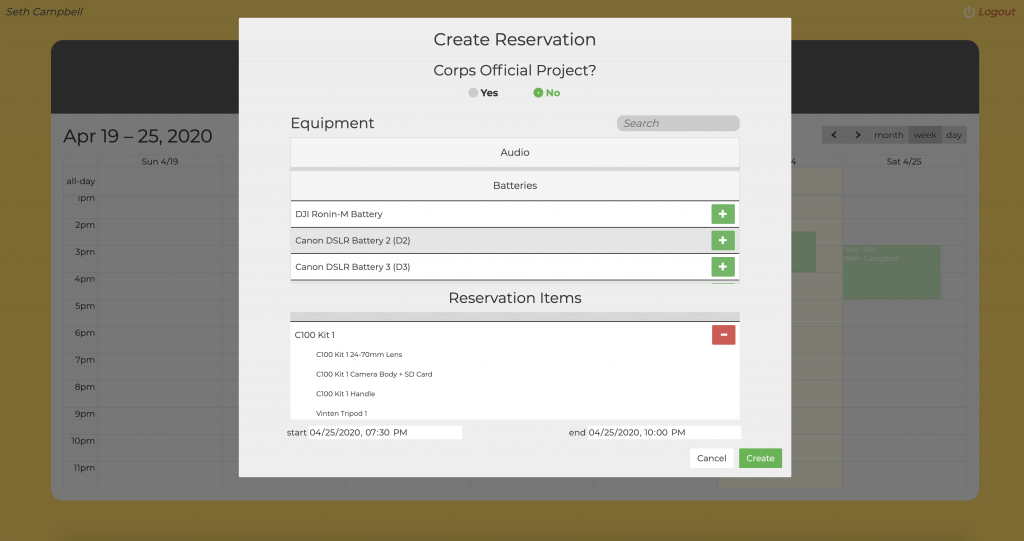
To make a new reservation, click or click and drag on a future date on the calendar. The system will not allow the creation of a reservation in the past. This will bring open a pop-up window containing a list of:
- All items available for the time selected;
- The option to make the reservation Corps Official;
- All items in the reservation;
- Options to manually edit the start and end time of the reservation.
Scroll and expand categories or use the search bar to select the items for the reservation. Only items that are available for the time selected will appear in the list. For example, if someone reserves a C100 Kit 1 for a portion of the time slot a logged in user is trying to select, it will not appear in the list of items.
There is an exception if the new reservation is for an official Digital Corps project, and the existing reservation in question is personal. In this case the Official reservation can override the personal one and will display a warning that the item will be “stolen” from another user.
Step 4
When the list of items selected is complete, click Create and after a few seconds a confirmation message will appear on the website and in Slack. Then the reservation will appear on the calendar page.
Please note that the staff will also receive a record of the reservation, and they can choose to decline the reservation for any reason. If this happens, a message will be sent via Slack stating which reservation was affected and who declined it.
A reservation may also be updated by clicking on it in the calendar view. This will open the same pop-up as before. Slack messages will be sent out when updating a reservation. A reservation may also be deleted in this window, and a corresponding Slack message will be sent.
Checking Equipment In/Out with the Scanner
Reservations can be checked in and out via the Mac in the Equipment Room. This is the only computer that has this functionality. To check items in and out of the system, follow these steps:
Step 1
Login into the Equipment Checkout Scanner application with a Ball State username and password.
Step 2
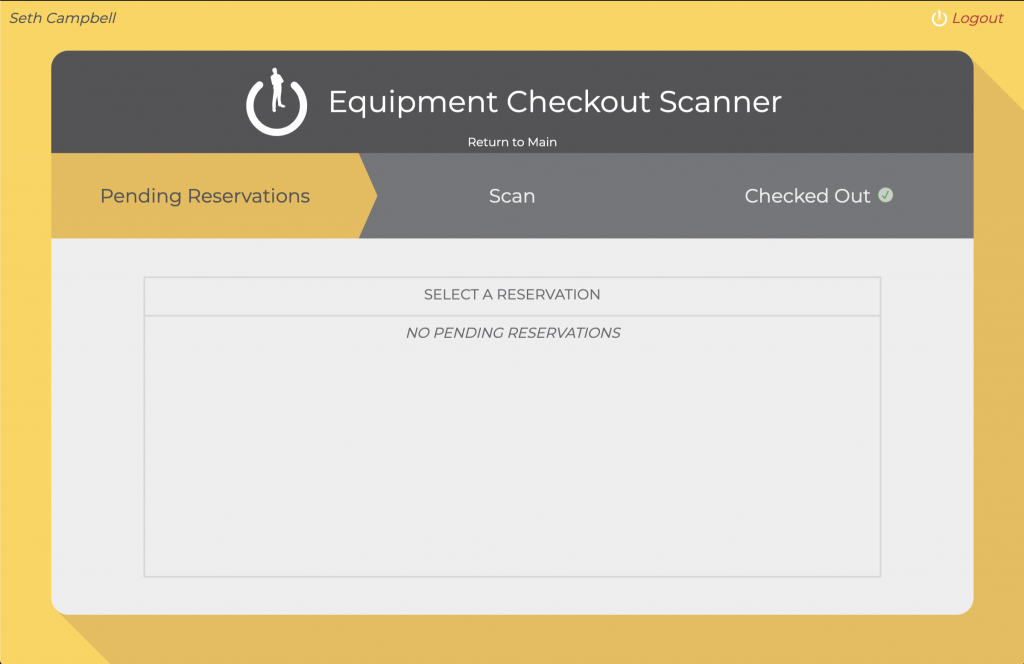
Once logged in, the calendar page will appear. Reservations cannot be created or edited from this page. They are simply displayed for reference.
To scan items out, click Check Out. Reservations will only be available after the start of the reservation time. Choose the reservation to begin the scanning process.
Step 3
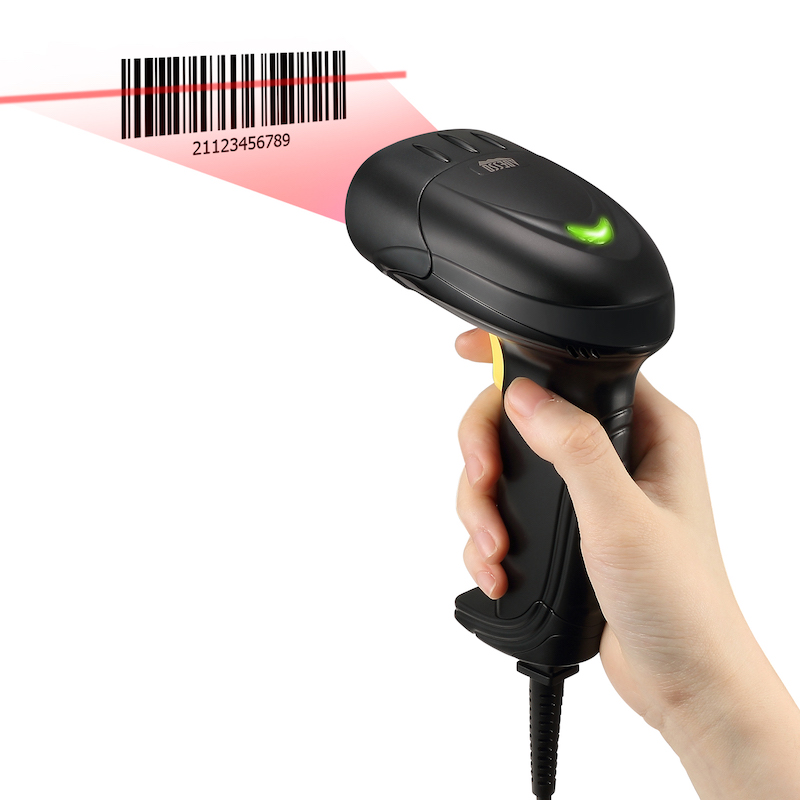
Use the barcode scanner in the equipment room and scan each barcode on each piece of equipment in the reservation. The page automatically detects the barcode and the corresponding item should highlight green in the list below. Continue this process for every item and kit in the reservation until all of the items in the list appear green. At this point a Slack message will be sent indicating that the checkout is complete.
Quick Tip!
If a barcode will not scan, first check that the cursor on the computer is in the input field and then try again. If all else fails, the item code can be manually typed it into the input field.
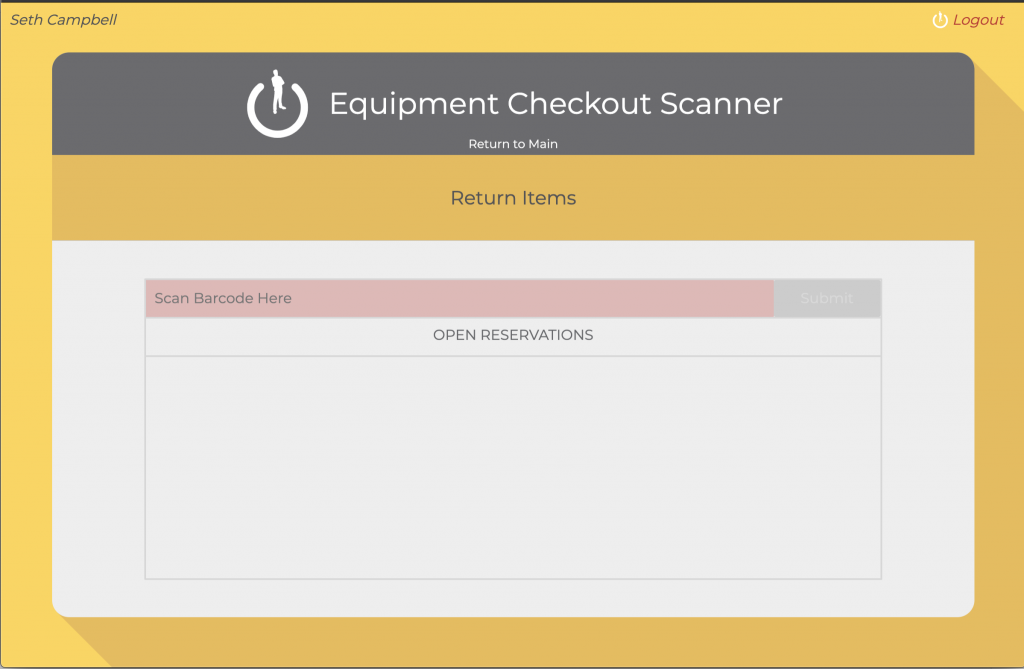
To return items, click Check In on the start page and repeat the process above. A Slack message will also be sent when all of the items are successfully returned.
Quick Tip!
In the event of a missed reservation check in deadline, staff will be notified, and hourly late reminders will be sent via Slack until the equipment is returned.
Common Mistakes
- Equipment Checkout is FAR from perfect, so if there is a problem, let someone know immediately! Sometimes the issue can be resolved quickly, and then nobody has to get spammed with late reminders.
- Ensure the correct items are present when checking out. Sometimes two like items will get swapped around in different cases. Battery D1 may work the same as D2, but the system doesn’t know the difference.
- If a reserved item is missing, or if an item that has been reserved is not needed, please update the reservation with the reservation system, even if items have already been scanned. It is the creator of the reservation’s responsibility to make sure the items in their reservation correspond to the items checked out, even if a group is checking out items for a project. If an item is missing, remove it from the reservation, otherwise the reservation owner will be accountable for that item during item audits.
- Everything with a barcode MUST be reserved. Even if someone needs headphones for 10 minutes, they must go through the reservation process. Need a phone for 5 minutes to test a new build? It must be reserved. Just experimenting with a new technique for an upcoming video shoot? Yep, reserve it. Using the equipment without reserving it is subject to disciplinary action.
- Be kind! While the system will allow users to reserve all of the equipment for all of the current semester, please don’t. Abuse of the system may result in the loss of personal reservation privileges.
