Connecting an Azure Repos Account to Sourcetree

Quick Tip!
Access to Corps project repos depends on generating a long-lived, single-use “token” from Azure. Tokens can expire without warning and need to be renewed each year.
Helpful Staff for this Topic

Viewing Code Changes without Azure Access
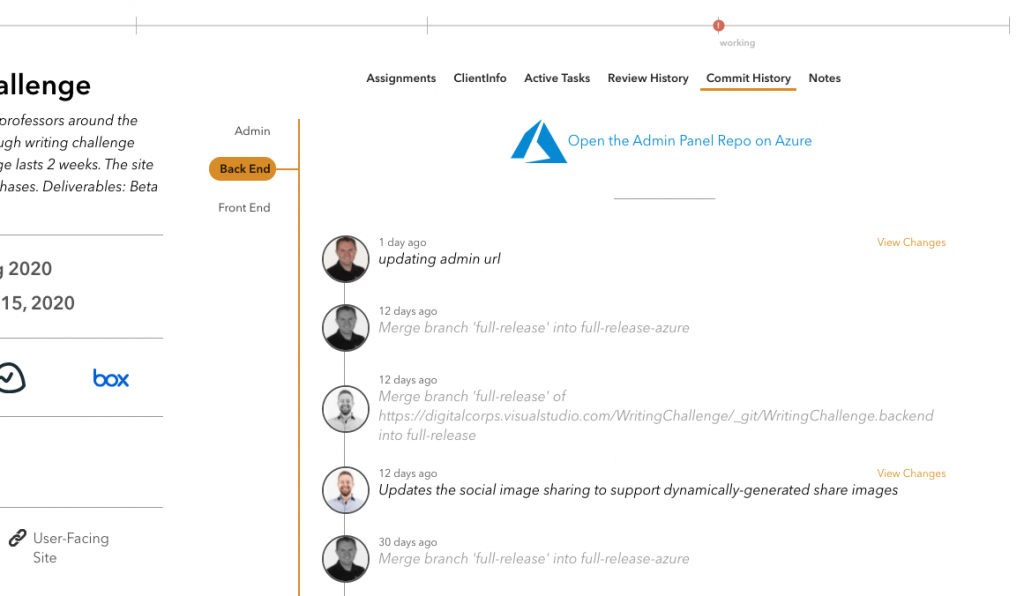
Employees simply looking to view the commit history for a project can use the Corps Dashboard’s Project Commit History feature. This method is particularly effective for JPMs who would like to stay aware of what their teammates have worked on recently.
The rest of this article concerns employees who need to make code changes.
Get a Personal Access Token
All Digital Corps development projects are stored on Microsoft’s Azure Dev Platform, a website for managing git projects (similar to Github). When Corps employees are hired, staff members will grant permissions as-needed. These permissions allow employees to clone repositories to their computers for local development purposes. Access to these repos in Sourcetree, a popular version control application, requires generation of a “token” to prevent unauthorized access.
Visit https://dev.azure.com/digitalcorps/ to create a token.
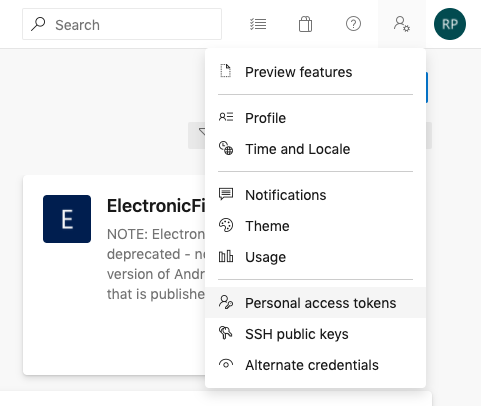
After the Dev Portal loads, click the Settings drop down in the top right corner and choose Personal access tokens. If this page fails to load, talk to a staff member.
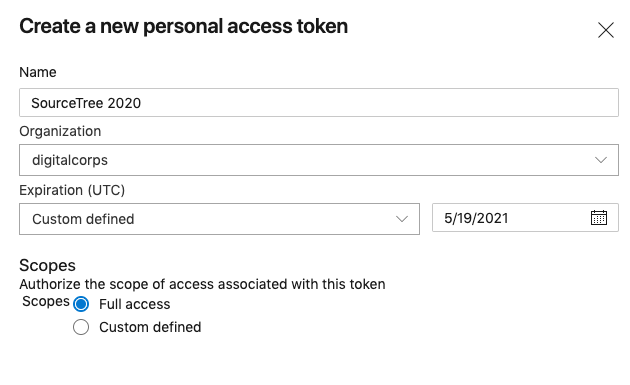
At the next screen, click the +New Token button and in the Create a new personal access token form, follow the suggestions below:
- Give this token a name (Sourcetree + the current year is a good option)
- Use the date picker to choose a date as far in the future as possible; one year is the maximum timespan
- Choose the “Full access” radio button.
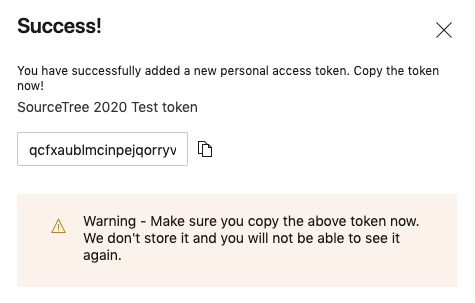
Copy the token from the next screen and store it in a safe place. This will be saved in Sourcetree in following steps, but there may be prompts for the token in the future.
Connecting Sourcetree to Azure Repos
Quick Tip!
Sourcetree’s ability to remember the token varies widely from computer to computer and prompts to re-enter it are often unpredictable. Save the token somewhere convenient, like a password manager, Notes, or Stickies, for easy access in the future.
After generating an Azure Personal Access token, open Sourcetree. The following process will be similar in other git clients, including the Github app, GitKraken, etc. Use the token in place of a password for Terminal-based git commands.
Open the Sourcetree preferences and navigate to the Accounts tab. Click the Add button and insert the following values:
- Host: Azure DevOps with a URL of https://digitalcorps.visualstudio.com
- Protocol: HTTPS (must be selected first to access the following options)
- Username: the BSU username tied to the Azure token (without @bsu.edu)
- Password: the Azure Repos token from the previous steps
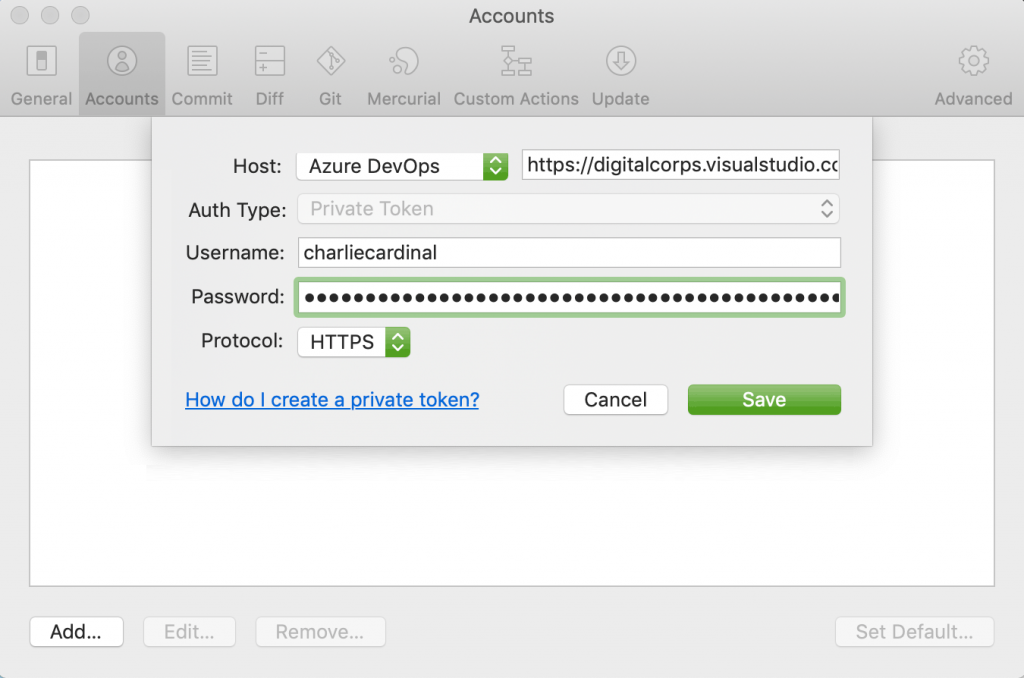
After saving these values, choose Window > Show Repository Browser and click the Remote tab. After a few seconds, the Azure DevOps accordion should populate with various Digital Corps projects. To learn how to clone repos locally, check out the Git 101: Using Souretree article.
When a Token Expires
At the end of a token’s lifetime—as specified during creation—Sourcetree will stop loading remote repos and will fail during attempts to perform git operations, including pull and push. When this happens, simply generate a new token and reconnect it by revisiting the steps above.
