Cintiq Basics

Quick Tip!
A drawing tablet can be helpful when you are working on a project that includes drawing or animation.
Helpful Staff for this Topic


When you are working on a project, you may find that a laptop does not offer enough creative freedom or the precision you need to create content. A Cintiq can be a useful accessory when working on various projects at the Digital Corps that include drawing, storyboarding, animation, and logo/branding design.
A Cintiq is a creative pen display that allows you to work on projects in an easier and more accessible way. You can connect a Cintiq to your laptop or computer to give yourself an extra monitor that acts as a drawing surface. When using a Cintiq, you can use the matching pen accessory to directly draw and edit your content more precisely.
The Corps currently has three different types of these drawing tablets available:
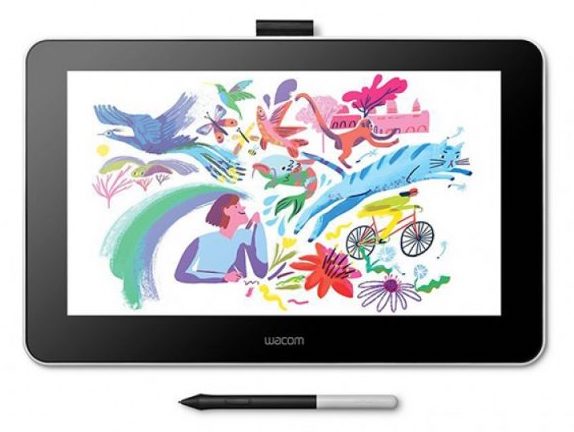
Wacom One (newer model)
- available for checkout
- 13.3″ screen
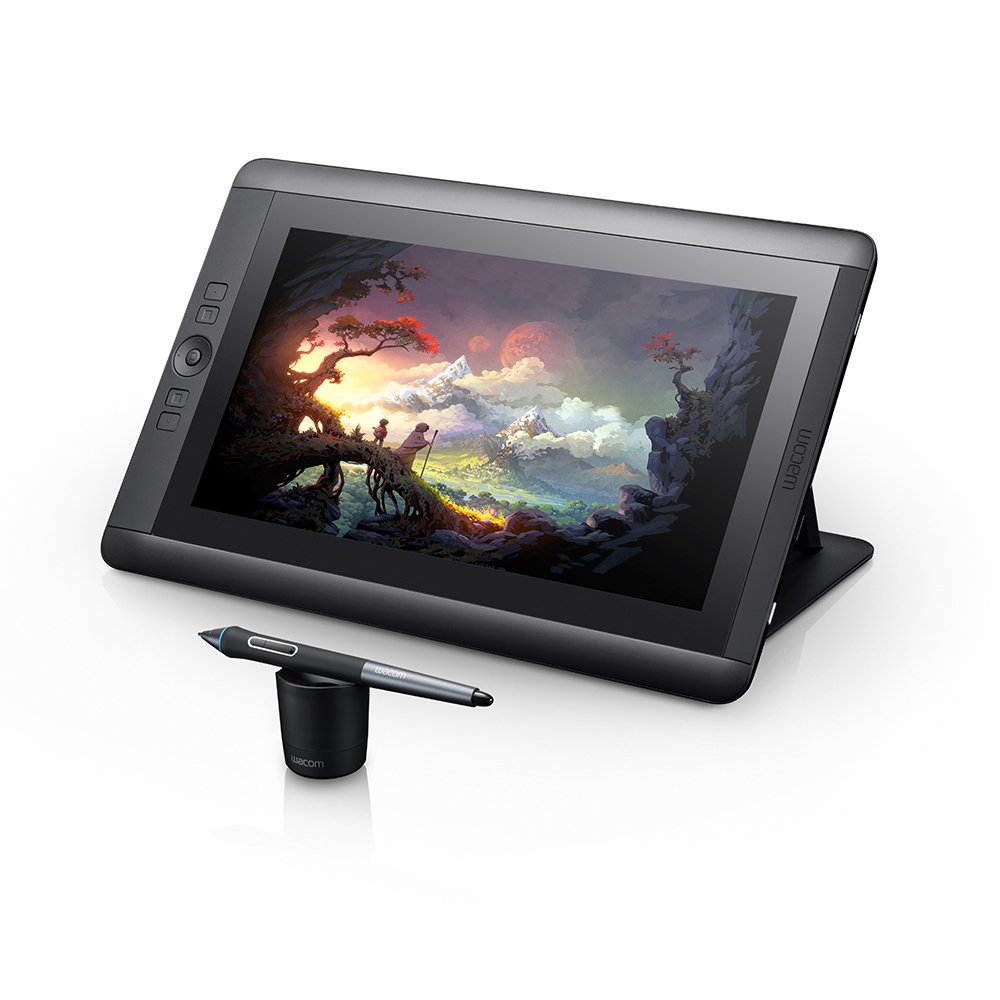
Wacom Cintiq Companion (older model)
- available for checkout
- 13.3″ screen
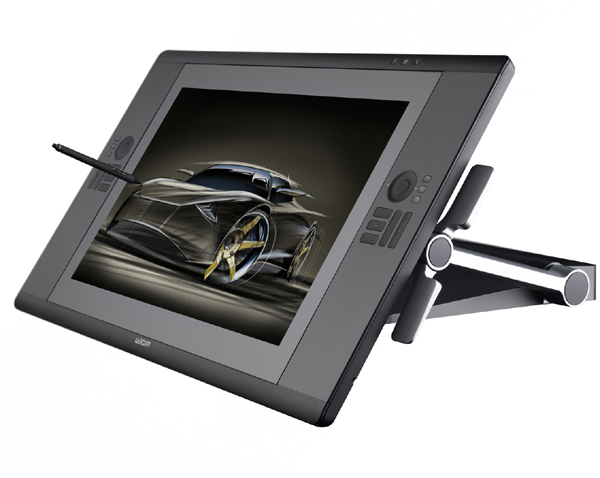
Wacom Cintiq HD24
- in-office use only
- 24″ screen
Where to Find a Cintiq
The Digital Corps has a few large stationary Cintiqs available for use while working in the office. When you are working on one of these Cintiqs, you will need a drawing pen, which are available in Riley’s office.
If you need a tablet to take home to work on, or a desktop Cintiq is unavailable, you can check out a portable Cintiq tablet from the Equipment Checkout Room on the first floor. These smaller Cintiqs come with a matching pen accessory, and can be used inside and outside of the office.
How to Check Out a Cintiq
If you need a portable Cintiq, you must use the Equipment Checkout System created by the Digital Corps. You can reserve and check out the smaller, portable Cintiq tablets for in and out of office use.
You do not need to check out the stationary Cintiqs, as they cannot be taken out of the office.
Quick Tip!
You can use the Equipment Checkout Scheduler to make reservations for the equipment that you need.
How to Use a Cintiq
Once you have reserved and checked out a Cintiq, you are free to use it to create content. You can easily connect the Cintiq to your laptop with just a few quick steps.
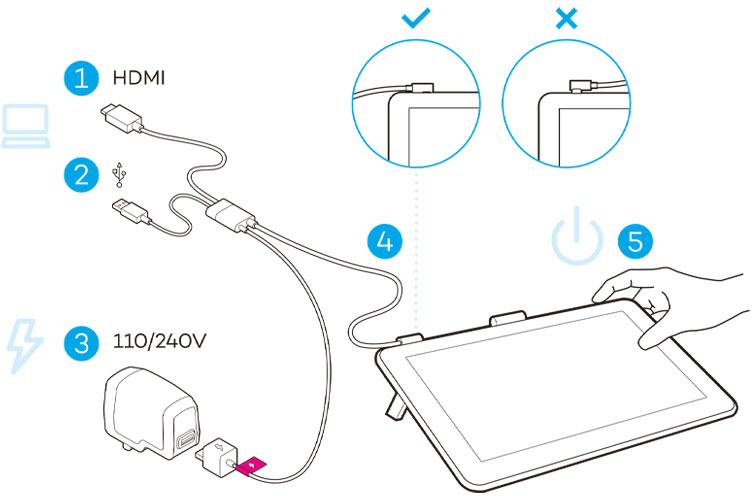
Step 1
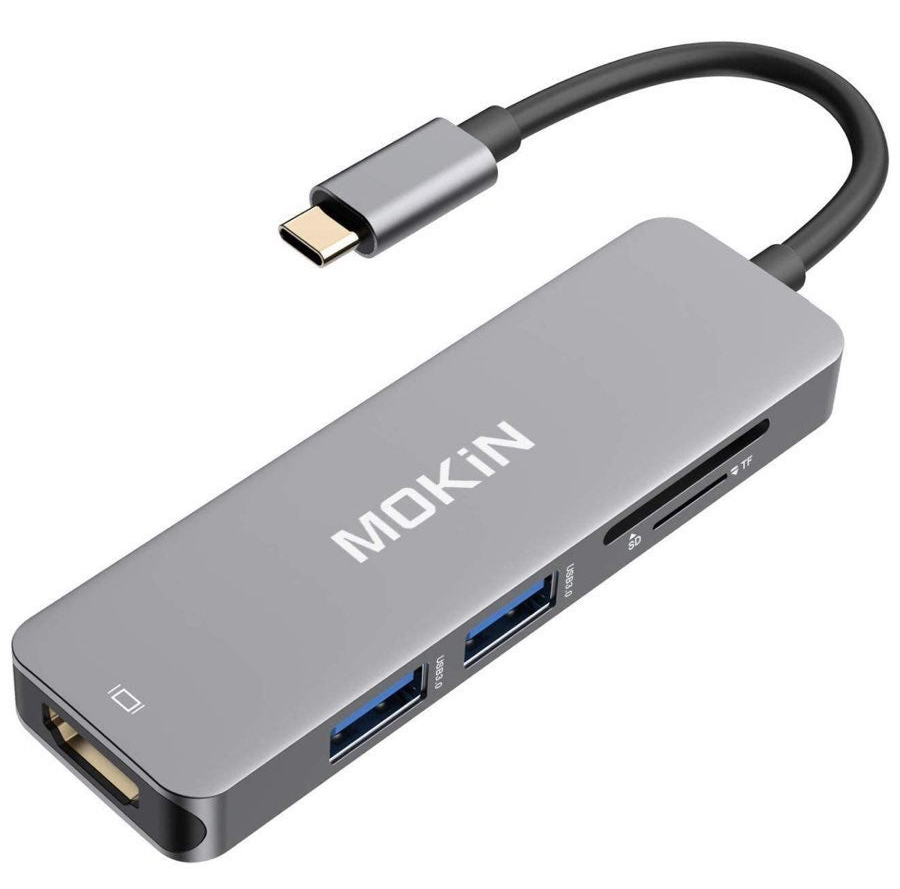
Connect the HDMI and USB cords to your laptop to allow video connection between the devices. Computers that have a USB-C port will require you to use an adapter in order to connect the HDMI.
Step 2
Plug the Cintiq’s power adapter into a power source, and connect the corresponding cable to the adapter.
Step 3
Connect the power cable to the Cintiq, and press the power button to turn it on.
Step 4
Download and install the Wacom driver. Follow the on-screen directions of the driver download in order to set up and calibrate the Cintiq to your computer.
Quick Tip!
If you find that your pen is drawing poorly, you can try to calibrate the Wacom setup.
Once the cables have been properly connected and the Wacom driver is dowloaded, the Cintiq is ready for use. Now, you are ready to start creating!
