JPG vs PNG vs SVG
Helpful Staff for this Topic


An image is an image, so why should you use one format over another, and what is even the difference?
The Basics: Vector and Raster
So we all know the difference between a vector and raster image: a vector image is a series of mathematical curves and points, while a raster image is a series of colored pixels/dots.
Vector images are great as they are infinitely scalable. An image looks the same at 100px tall as it does at 100,000px tall. But they have limits. Complex textures or shading, while possible to add in Adobe Illustrator cannot really be replicated by math and therefore end up being raster images embedded with your final vector image.
Raster images, on the other hand, are a fixed series of colored dots/pixels and do not scale as well as vector. An image that looks sharp at 100px will look incredibly muddy and pixilated at 100,000px.
An uncompressed raster image is called a bitmap. It literally is what the name implies: a map of bits — colored dots — often times millions of individual dots in a single image.
Vector and raster are the two primary types of images you will be dealing with in any 2D creation software: Figma, Illustrator, Photoshop and many others. Vector and raster are the formats of the images within those applications, so what about when we need to actually use these images in projects?
Can we just spit out a pure raster or vector version of these images?
The answer is “kind of.”
The closest thing to a pure vector export is an SVG (a Scalable Vector Graphic). An SVG is a wrapper that contains the vector information and tells a web browser how to read it. But like we mentioned before, some effects like textures and shadows are converted to raster (bitmaps) images, which are then embedded with the SVG container. So an SVG is mostly a pure vector image.
So how about raster images? Can we just export a pure bitmapped image? Yes. Yes we can. This is literally just a BMP file. BMPs are uncompressed pure bitmaps. They are a perfect export of your raster image. So what’s the downside? The downside is that they are huge files. The BMP format has to account for every single pixel in the file, which can be in the millions. A single full BMP image can easily be a few MB in file size. That is just far too big to be practical. (They also don’t include color profiles, but that is a whole other can of worms, which we won’t be discussing here.)
Okay, so how do we get these dumb bitmapped files down to a manageable size?
We compress them!
JPGs and PNGs
JPGs (Joint Photographic Experts Group — sorry to disappoint you that this turns out to be such a boring acronym) and PNGs (Portable Network Graphics) are the two most common compression formats. These are ways to make raster image files smaller, and they both manage this in different ways.
JPGs attempt to make bitmap file sizes smaller by blending similar colored pixels together within an area, therefore reducing the overall amount of separate pixels that the file needs to keep track of.* This works incredibly well for complex images such as photographs. Due to the complex amount of information in a photo, it can difficult to notice the blending and degradation of individual pixels.
(*this is a rough approximation of a very complex mathematical process)
You can also adjust the amount of compression in a JPG, meaning you have more granular control over the final file size vs the amount of destruction the compression is doing to the image.
But, on the other hand, JPGs can tend to not work very well with solid colored graphics. Large areas of solid colors and sharp edges can look muddy if you compress them too much.
PNGs handle their compression in a very different manner. A PNG looks at a bitmap and takes all the pixels of one color and treats them as a single dot to remember. If there are a total of 1,000 pixels of a particular blue, the PNG file will simply save them as one pixel and then tell the browser or application where to fill that one blue in.* This works great for graphics. If a PNG has a logo with three colors, it only needs to save three pixels for the color, which leads to an incredibly small file size, regardless of the actual dimensions of the file. PNGs also have the benefit of being able to include transparencies, which JPGs cannot.
(*once again, this is a rough approximation of a very complex mathematical process)
But there is a downside to PNGs. The same system that reduces graphics to such small file sizes absolutely falls apart when dealing with bitmaps that contain large amounts of varied colors. Remember: a PNG needs it to be the exact same color for its compression system to work.
Here are a couple of examples that showcase the strengths of each compression format.
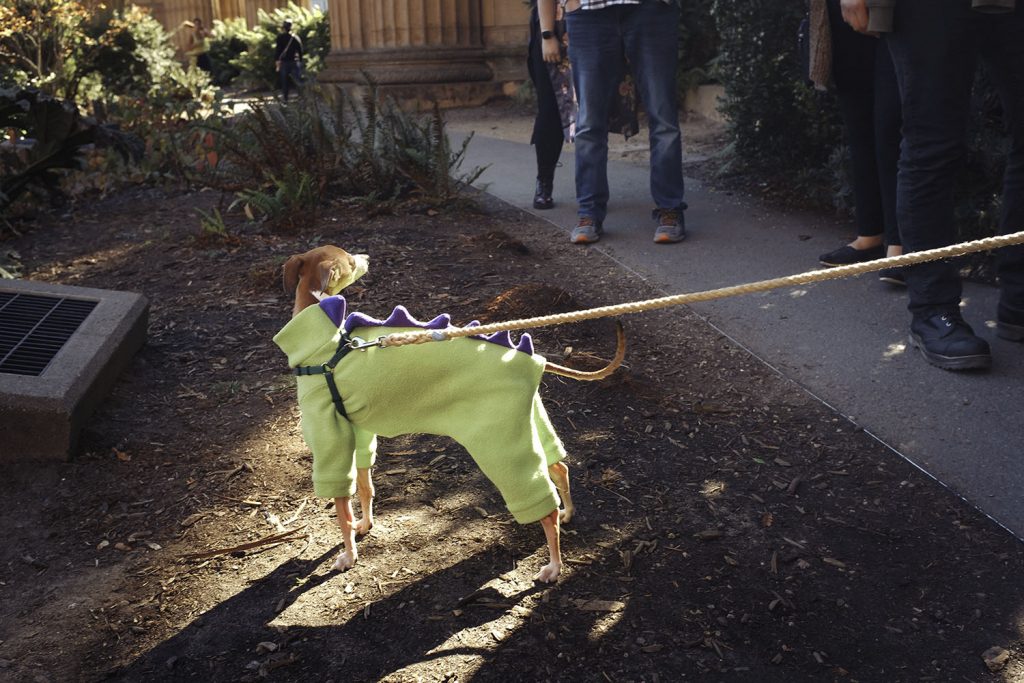
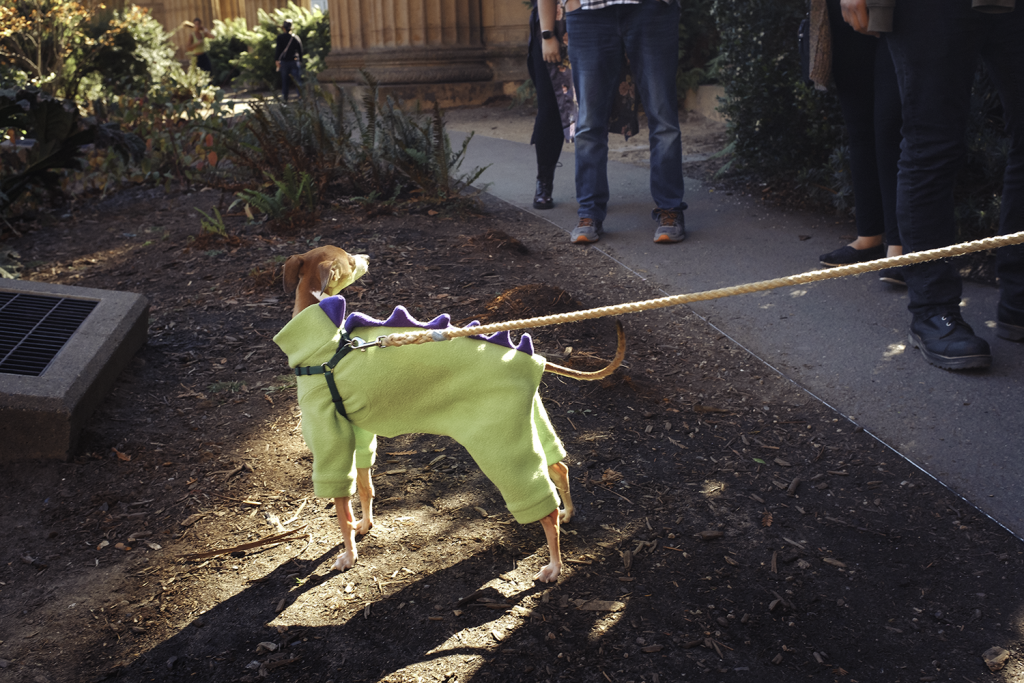
Both of these photos look identical, but look at the final file sizes. The JPG is 348KB while the PNG is a whopping 2.6MB. The original BMP was about 5MB, so the PNG was able to cut the file size in half, but that seems almost insignificant compared to just how small the JPG was able to reduce the file.
Now let’s look at some BSU logos:

JPG 251KB 
PNG 80KB
The JPG here is only 251KB, which is great, until you notice that the PNG is only 80KB.
Do the differences in file sizes for these make sense now that we’ve discussed just how each compression format works?
SVG
That BSU logo? The SVG version is even smaller, weighing in at only 23KB.

So in what situations would be want a PNG over an SVG, or vice versa? Both seem to excel at simple graphics. SVGs have the added bonus in that they can be easily altered and edited after they have been exported from whatever software was used to create them.
Need to change a color of an icon when a mouse hovers over it? We can do that with SVGs. Or what happens if the branding and color guidelines of a website changes after we have finished it? We can literally change the color of our SVGs with a line of CSS!
SVGs are also great for logos, as their scalability allows them to be used in print products or advertisements. It will always be the correct resolution, regardless of how big you need it to be.
So if an SVG is scalable, more versatile, and an even smaller file size, why would I simply not use it for all graphics?
The answer is that there is a limit as to the complexity of an image that an SVG can handle. There isn’t any hard line or rule, but SVGs can break down and not always display things correctly when dealing with more complicated images. Browser support can also occasionally be buggy. This can make them unpredictable, sometimes even from one browser to another. And all those embedded rasterized shadows, gradients and textures can cancel out any file size advantages we might get from the SVG format.
Here is the Digital Corps Summer Camp sticker in each format:

JPG 279KB 
PNG 758KB 
SVG 8.3MB
All versions look identical, but the JPG version is 279KB, the PNG is 758KB and the SVG is 8.3MB(!).
So why is the PNG larger than the JPG, and why is our SVG so insanely huge? It’s because the image happens to be using a light texture overlay and a color gradient on the sky. This gives the JPG format an advantage over the PNG. Complicating things is the fact that SVGs, by their very nature, have no raster compression. So tucked away, inside that SVG wrapper, is a completely uncompressed bitmap of that texture file and gradient.
In the end, here is a simple guide to remember which format to use:
Is it a photograph? JPG!
Is it a graphic? PNG!
Does it have a transparency? PNG!
Is it a simple logo or icon that will be used on a website? SVG!
Bonus: Is it going to be used in a video project? Just give them an AI file!
