Using the Local App for WordPress Sites
Helpful Staff for this Topic


Quick Tip!
The Digital Corps uses WordPress on many projects because it allows us to quickly build sites with an easy to use admin panel. We use the Local app because it makes setting up and sharing those WordPress sites simple.
What is Local?
Local is an app that helps you manage locally installed WordPress sites. It greatly simplifies the process of setting up new WordPress sites as well as importing and exporting existing sites to and from other people.
Installing Local
Go to https://localwp.com/.
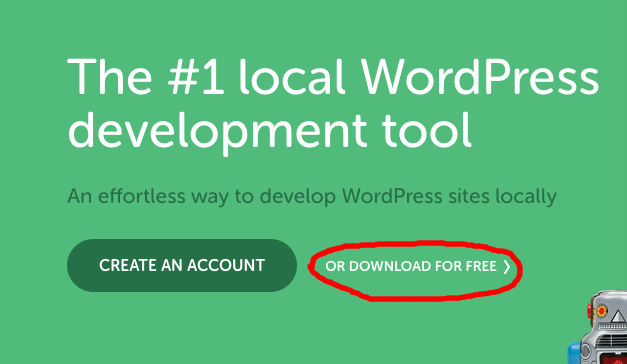
Click on “OR DOWNLOAD FOR FREE” which will bring up an overlay.
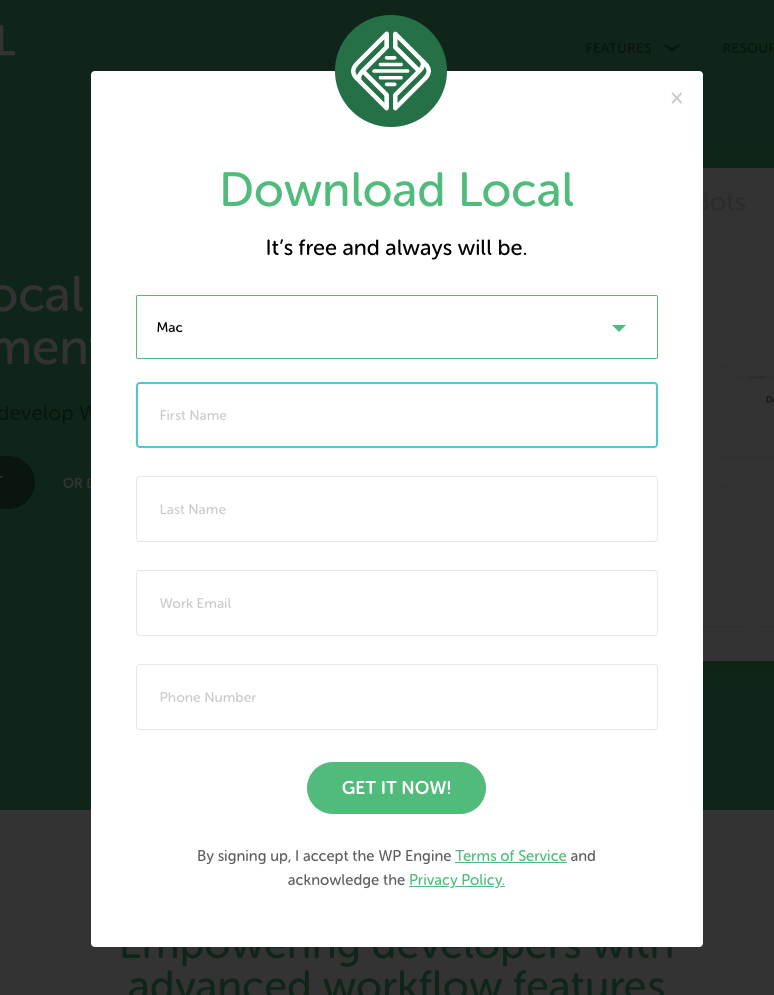
Fill out the information then click the “GET IT NOW!” button. This will download the installer. Once it is downloaded double click on the installer.
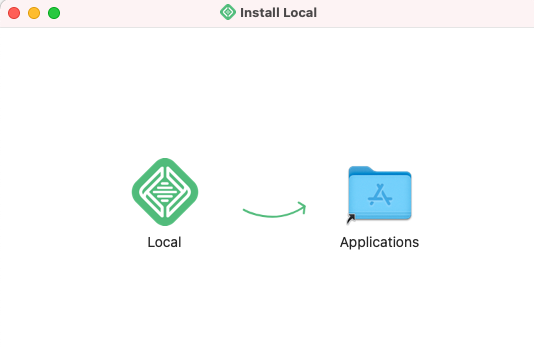
Drag the Local app to the Applications folder. Then Open the Application.
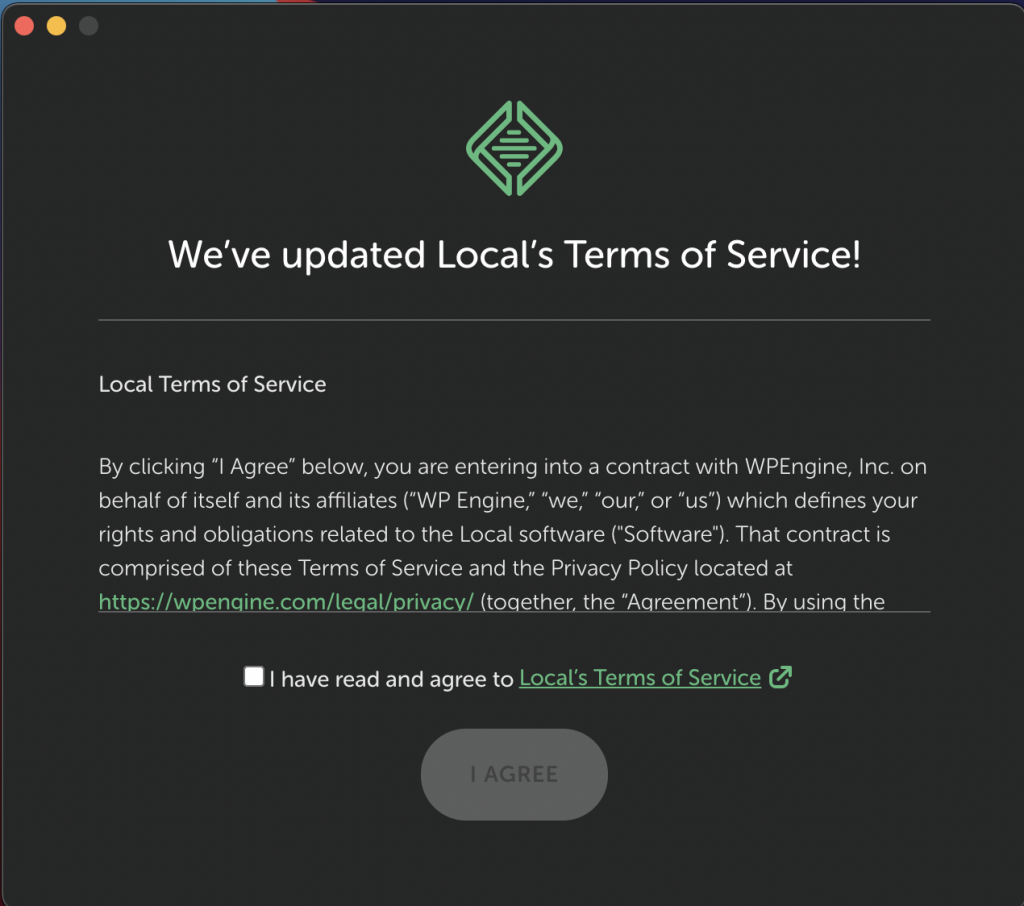
The first time you launch the application you’ll need to agree to their terms of service.
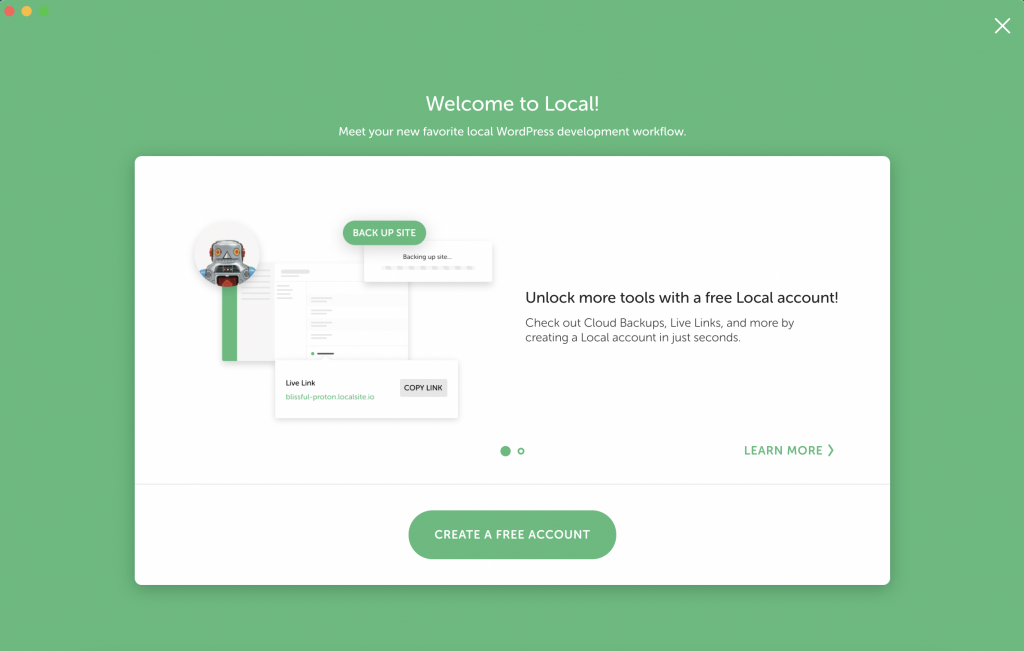
You DO NOT need to create an account. You can just click the X at the top right of the screen.
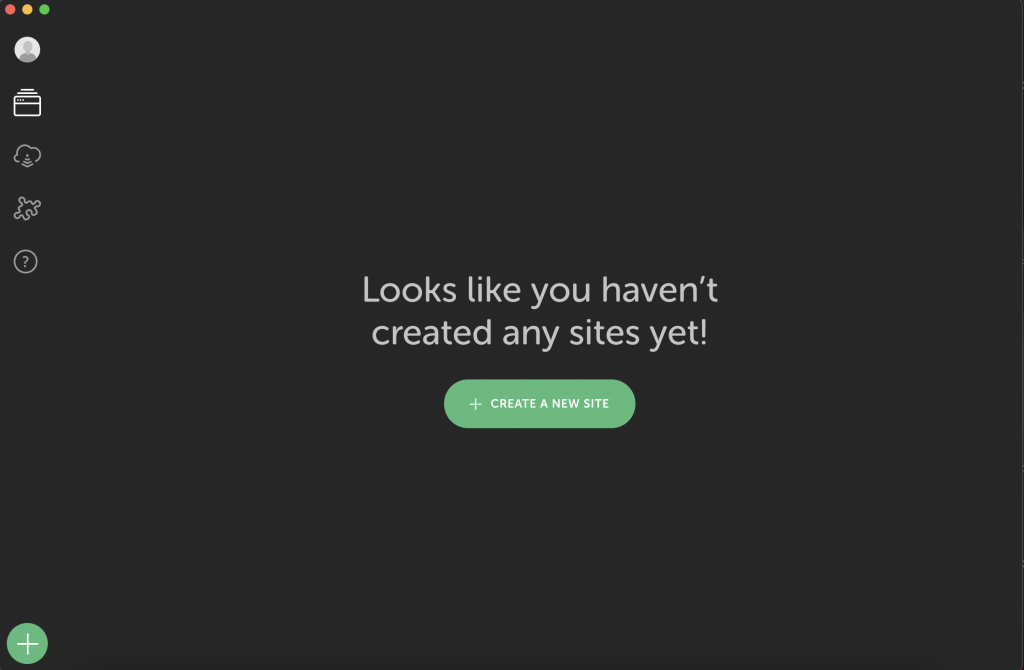
Finally you’ve made it!
Making a WordPress Site
To make your first WordPress site in Local click the + button on the bottom left.
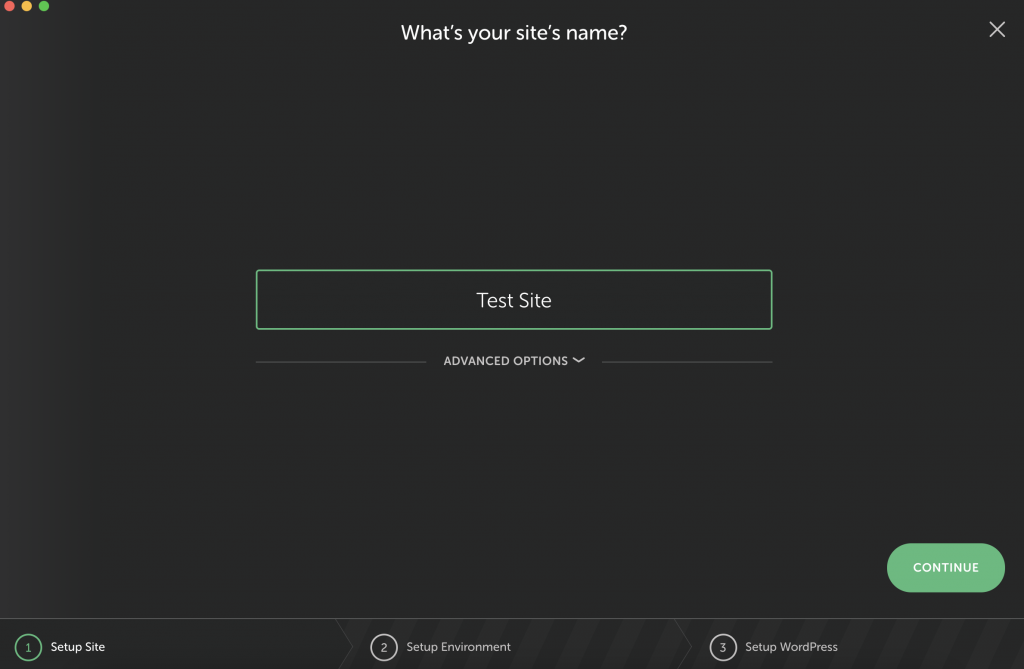
Give it a name and click continue.
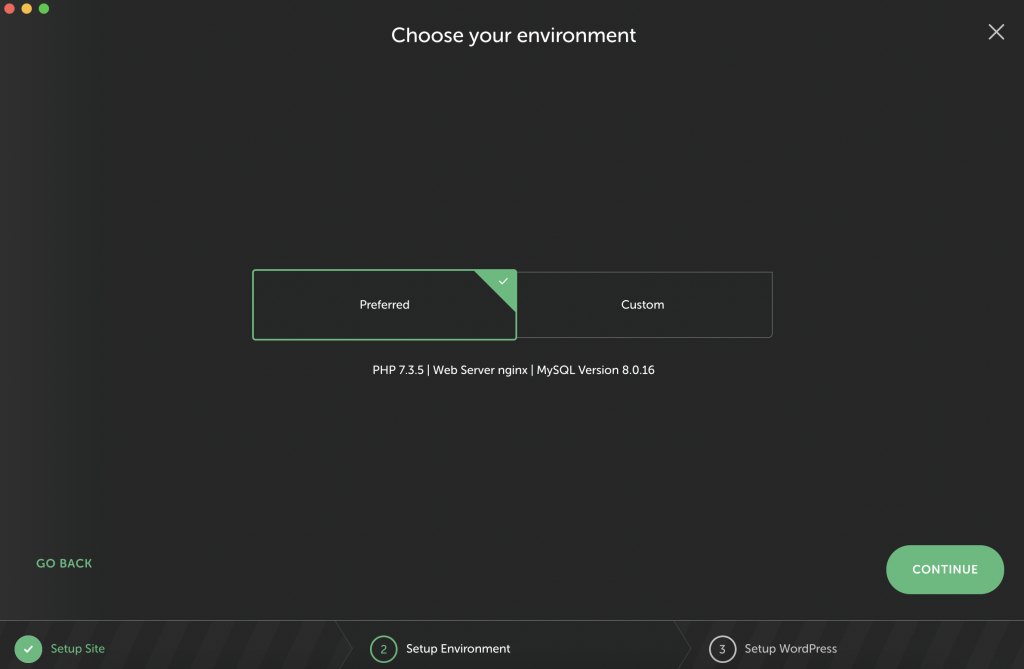
Unless you want to set custom options (e.g. PHP version) you can just select “Preferred” and then click continue.
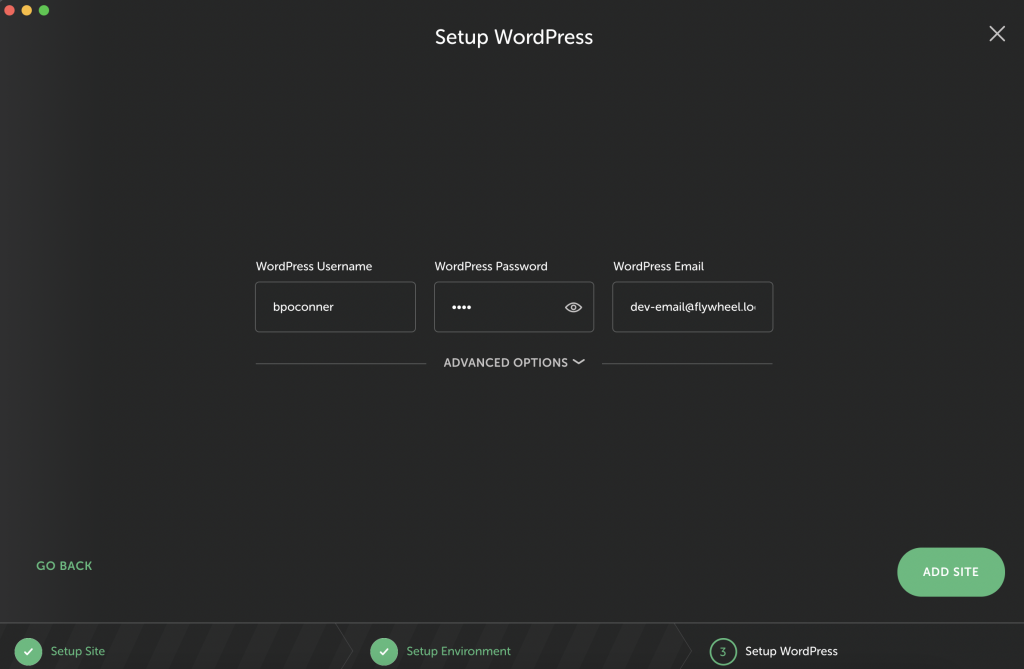
Create a username, password, and email then click “Add Site.”
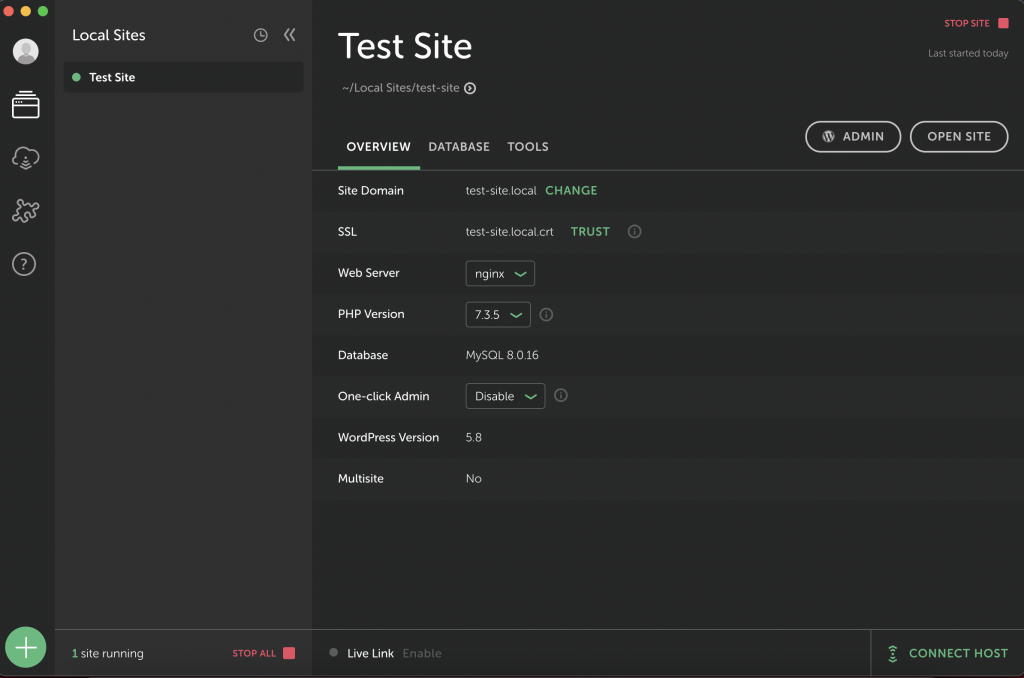
Now your site is ready to go. You can click Admin/Open Site to go to your site.
Exporting a Local Site
Local makes importing/exporting sites incredibly easy. Let’s start by exporting the site you just made.
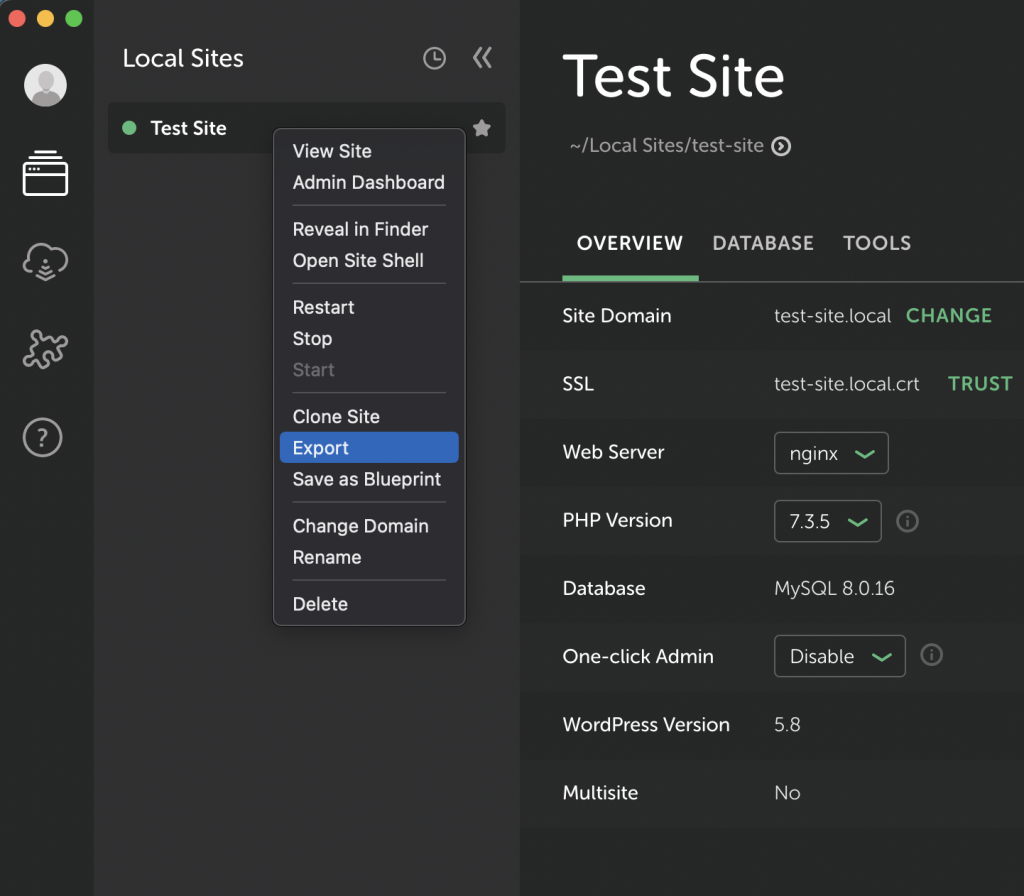
Right click on your site in the left side menu then click Export.
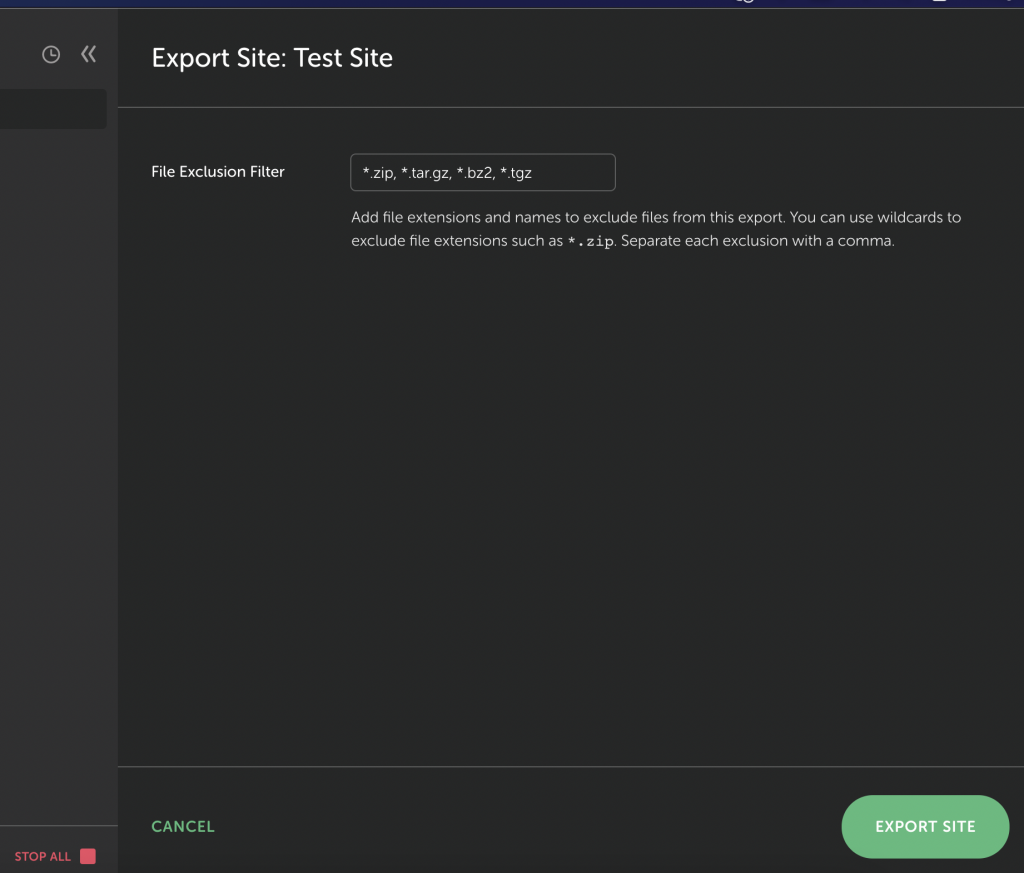
You don’t need to change anything here. Go ahead and click “Export Site” down at the bottom. Then save your zip file wherever you want. If you send that exported zip file to someone else they can install a copy of your site on their computer.
Importing a WordPress Site
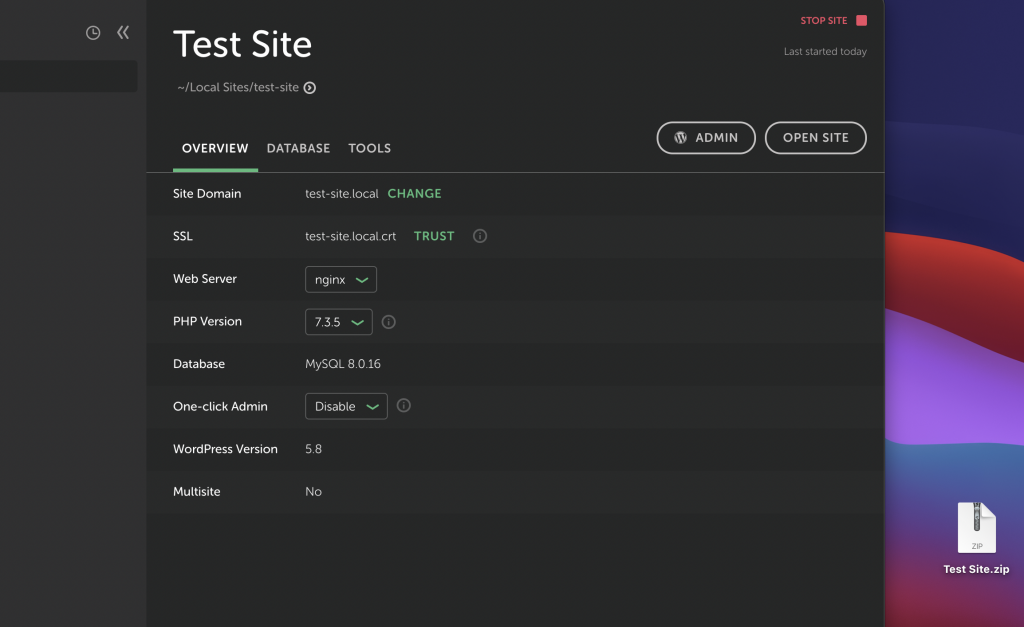
To import a WordPress site into Local take an exported zip file and Drag and Drop it into the middle of the App.
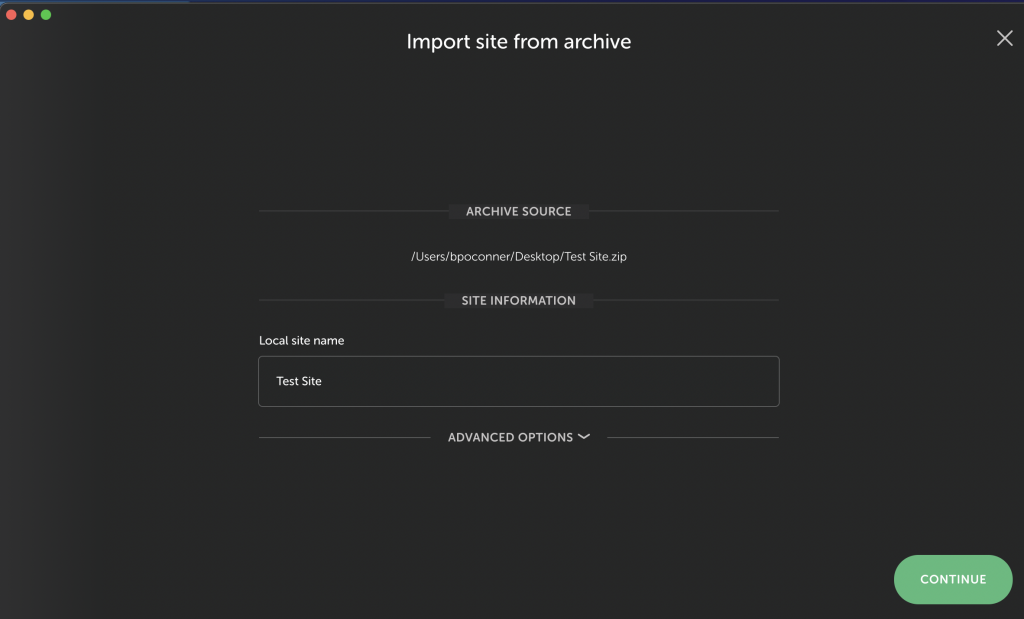
Once you do Local will bring up a prompt to change the name or other settings. You can just click continue. Now you just have to wait a moment to let it finish building the new site and you’ll be good to go.
