OneDrive Troubleshooting: Sync Issues

Quick Tip!
If the following steps don’t fix your issue, talk to Mike. Please have screenshots ready (if applicable) and be as detailed as possible in describing your OneDrive problems.
Helpful Staff for this Topic

If you are reading this article, it probably means that you are having issues with OneDrive staying synced on your device. Here are some tips that usually help fix syncing issues.
Step 1: Turn off Files On-Demand
On your device, navigate to the toolbar at the top of the screen and click on the OneDrive cloud icon to open up the OneDrive application. From there, go to the Settings. Once you are in preferences, on the main tab, you will see the option to Turn Off Files On-Demand. Turn this off.
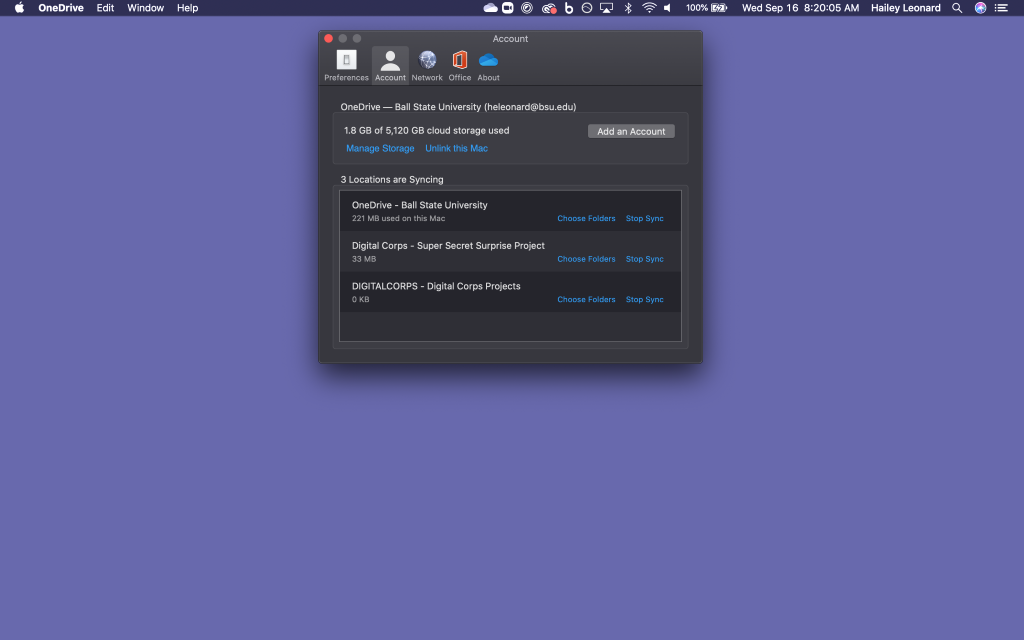
IMPORTANT NOTE: Turning off File On-Demand will download everything you have synced to your device. If you have a large number of files in your personal OneDrive, this may cause issues. Go to Preferences > Account and check the amount of storage that your OneDrive takes up. If it is a significant amount, you might need to leave Files On-Demand on. Talk to Mike if you think this may be an issue.
Step 2: Stop Syncing the Digital Corps Projects Folder
In Preferences > Account, stop syncing the whole Digital Corps Projects folder.
Step 3: Restart Your Computer
To finalize this change, you will have to restart your computer.
Step 4: Sync Your Specific Project Folders
Refer to Step 5 of the Accessing OneDrive Reference Guides article to find instructions on how to sync specific project folders.
IMPORTANT TIPS:
- If you have any troubles with OneDrive or with this process, you need to contact Mike and only Mike (unless otherwise specified by Mike). This helps streamline OneDrive issues so that they can best be solved.
- Deleting folders from your device WILL delete them from OneDrive. Make sure to only un-sync if you want to keep the file and only remove it from your device. If you have any files that have not synced to the cloud, copy those to a separate folder on your computer.
