Accessing OneDrive

Quick Tip!
The Digital Corps has switched from Box to OneDrive for our file storage system. The following steps will help you access the Corps OneDrive and sync the necessary project files to your devices.
Helpful Staff for this Topic





The Digital Corps has shifted the file storage system from Box to OneDrive. All current and new students must follow the steps below to setup and configure your access to the Corps OneDrive projects folder. This guide has instructions on how to install OneDrive and setup the folder sync on a Mac computer. If you need help completing this process on a Windows computer, contact Mike.
NOTE: These instructions are for your MacBook. Do not attempt to follow these steps on a mobile device.
1. Access the Digital Corps Project Folders
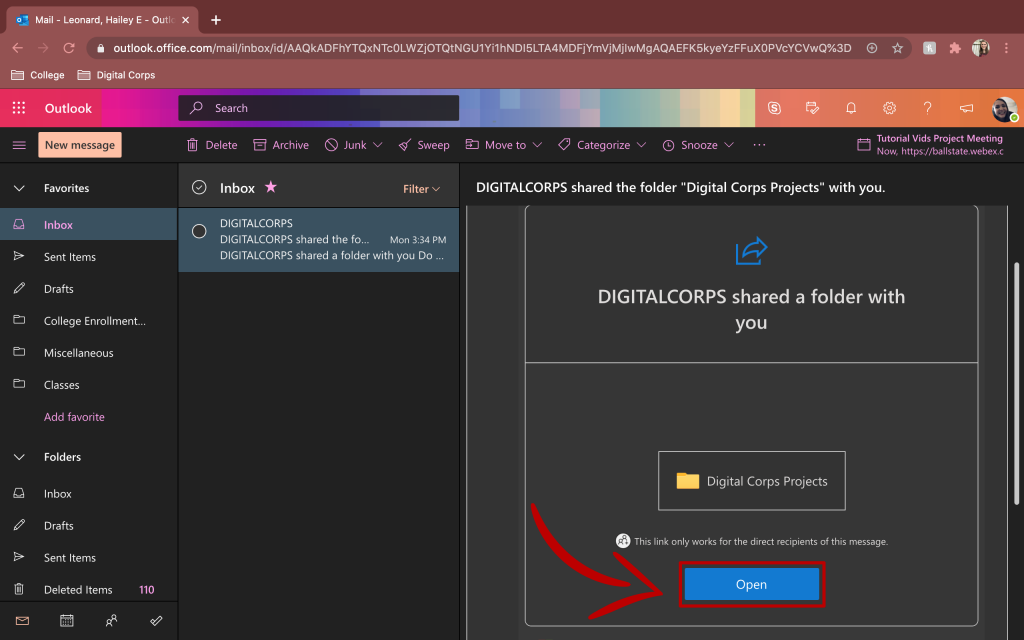
Check your Ball State email account for a message from DIGITALCORPS with the subject DIGITALCORPS shared the folder “Digital Corps Projects” with you. Click the Open button.
2. Download the OneDrive app for your device
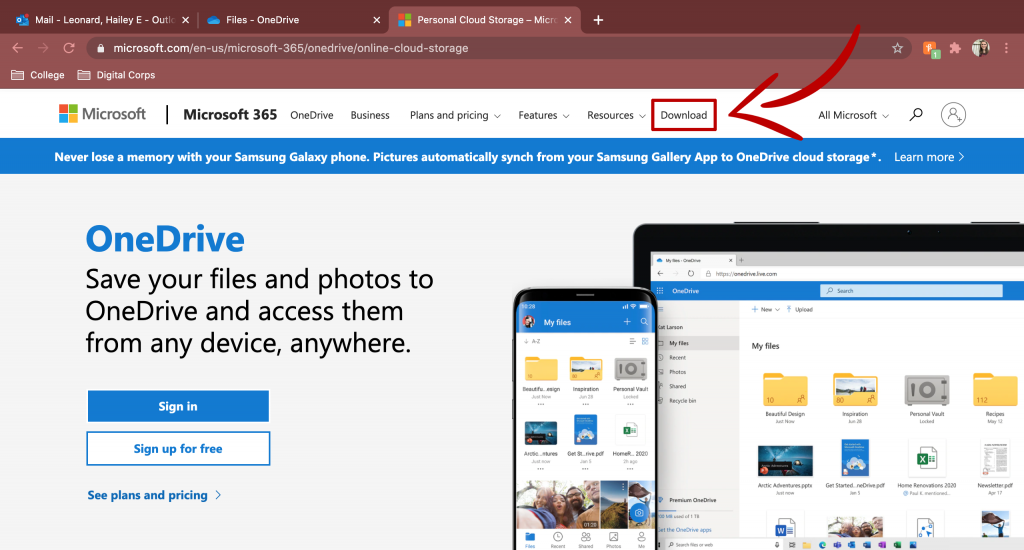
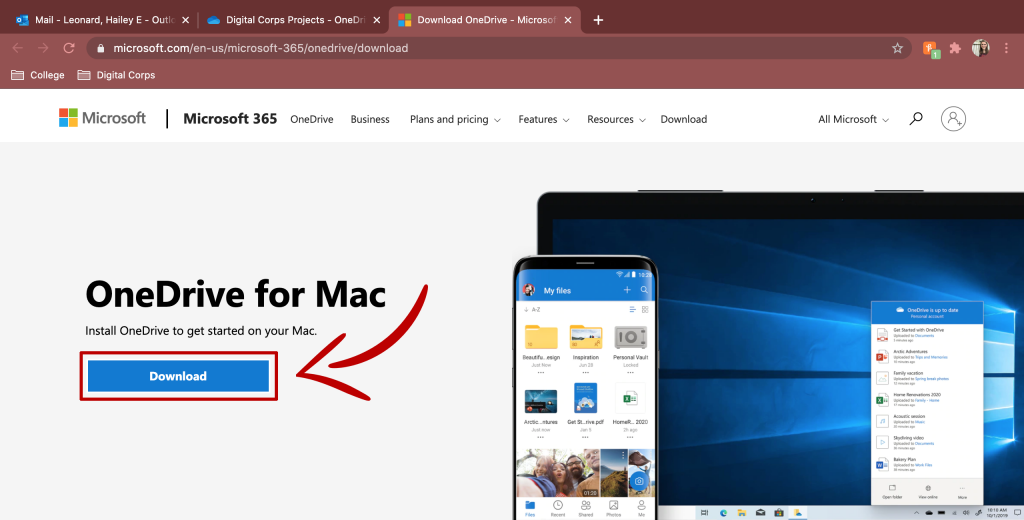
To access files on OneDrive on your local device, download the desktop app from onedrive.live.com. Follow the installation wizard to install OneDrive.
NOTE: We have encountered issues with the version of OneDrive downloaded from the App Store. Do not use this version – use the one from Microsoft’s website.
3. Log in to the OneDrive application on your device
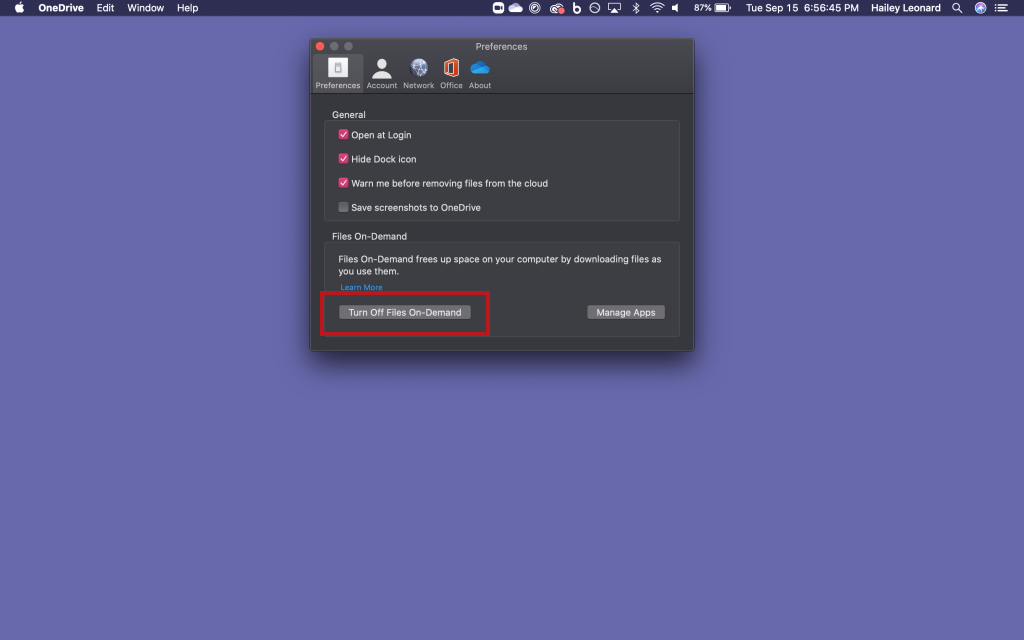
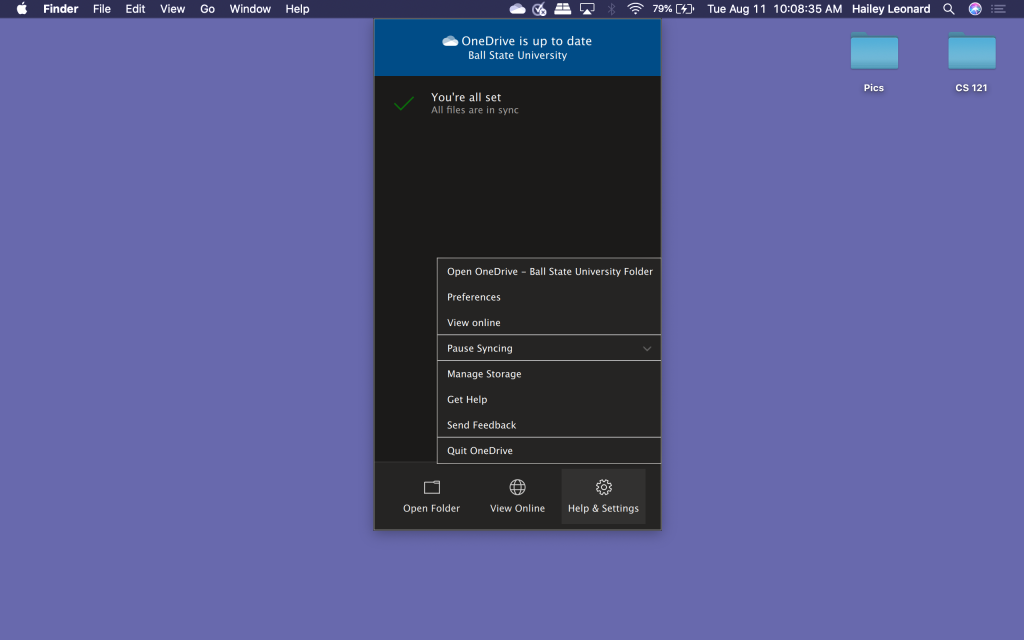
When prompted, enter your Ball State email address to redirect to the Ball State single sign-on. The OneDrive application can be found in the launchpad and the menu bar (cloud icon). Below is a screenshot of the settings and sync status of OneDrive.
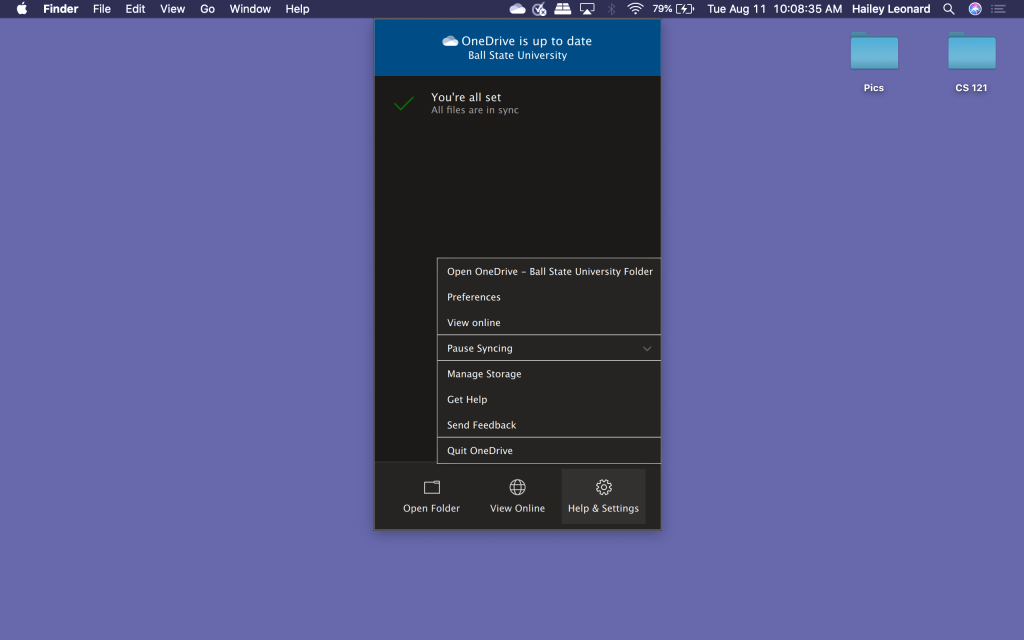
While you are in OneDrive on your device, navigate to the settings (preferences on Mac). In there, turn off Files On-Demand. This will ensure that all synced files will download to your device. If you have a large amount of files in your personal OneDrive, check storage amounts before turning this feature off.
4. Log in to OneDrive from a browser
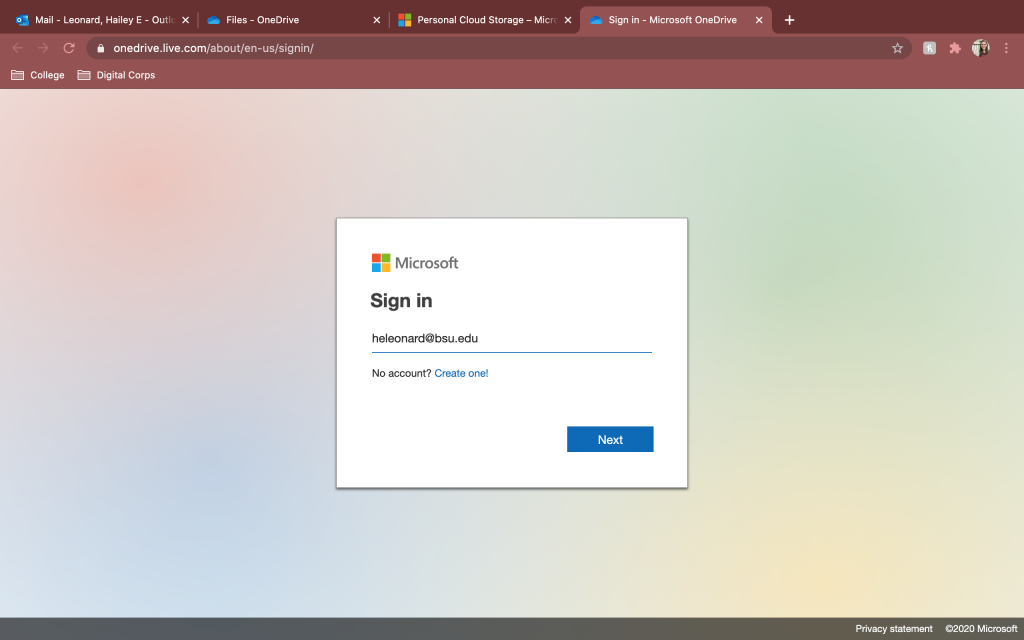
You now have access to your personal folders on OneDrive. In order to sync the Digital Corps projects folder to your desktop, log into OneDrive from a web browser. Navigate to https://onedrive.live.com/about/en-us/signin/ and sign in with your Ball State credentials.
5. Navigate to the Digital Corps Projects shared folder to locate projects to sync
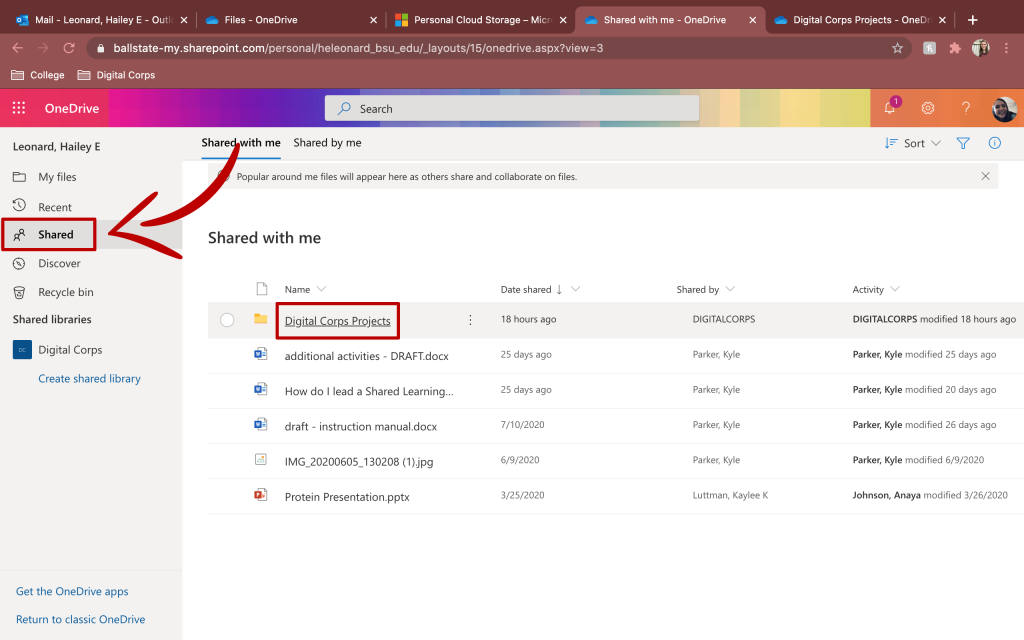
Once you log in, go to your shared folders. Click on the Digital Corps Projects folder.
To sync project folders to your device, navigate to the specific project folder and click the sync button in the toolbar at the top of the page.
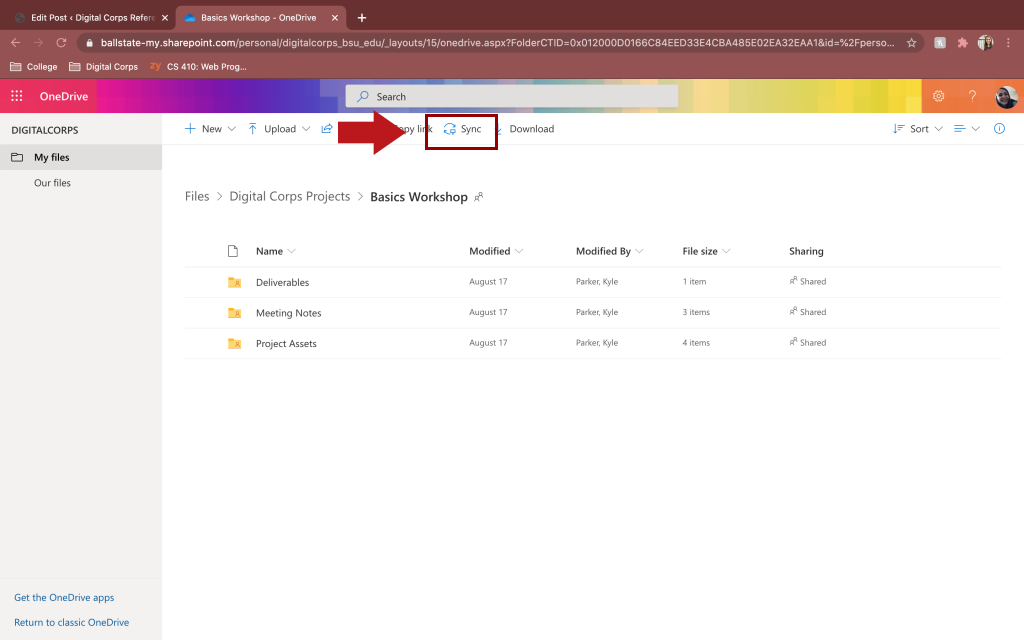
For larger projects, only sync the subfolders necessary for your portion of the project. For example, if you are working on The Loading Zone episodes, only sync the asset folders necessary for your episode, not all project assets for the Loading Zone. If you sync the entire folder for projects like TLZ, Corps Social Media, or Tutorial Videos, you will likely use up all available storage on your device.
6. Return to the OneDrive desktop application and select the folders to appear in Finder
IMPORTANT: You must wait for the “sync” indicator on the OneDrive icon in the menu bar to disappear. Changes made to the sync preferences will not save until the initial sync has ended.
Return to the OneDrive application to choose the specific folders you want to appear in the Mac Finder.
From the menu bar, click on the OneDrive cloud icon, go to Help & Settings, and then select Preferences.
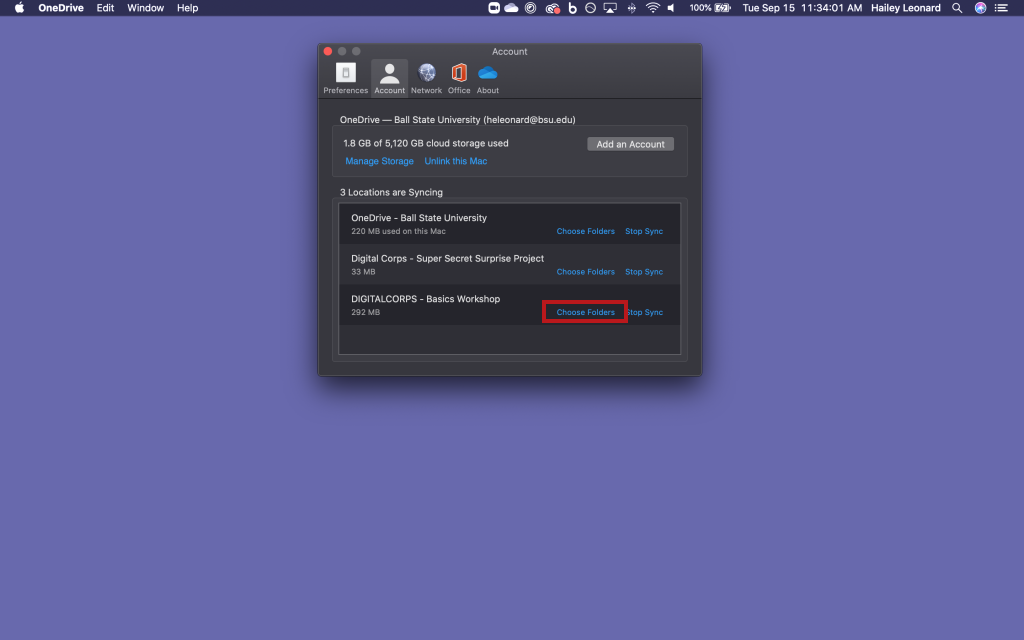
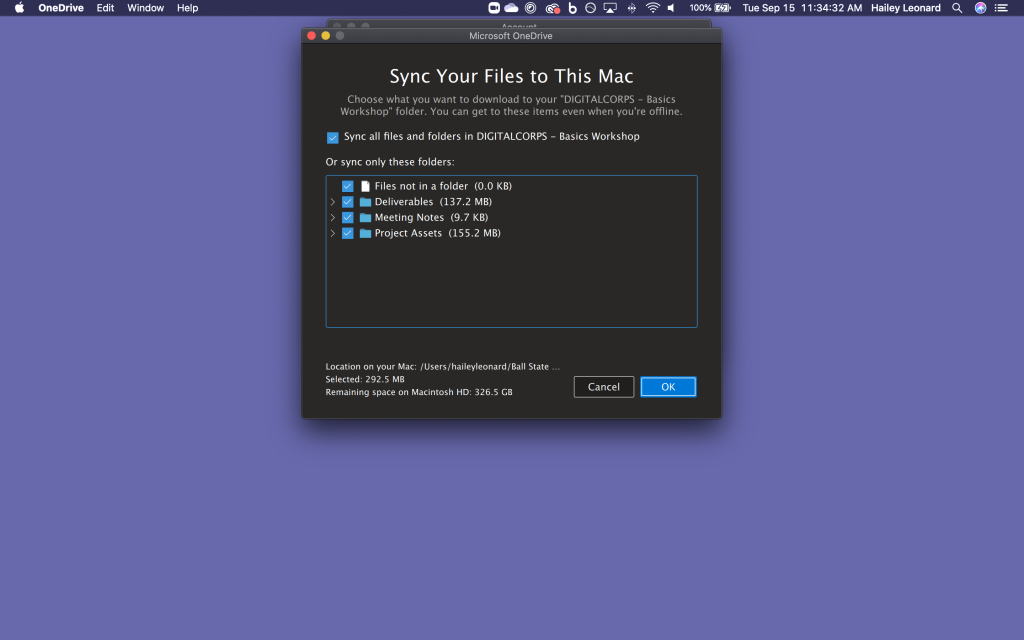
From the settings screen, click on the Account tab. Select Choose Folders next to the DIGITALCORPS – <FOLDER NAME> heading. From there, you can select the project folders that should appear on your device.
Reminder: You should have turned off the On Demand feature by this point. All folders you select here will be downloaded to your computer. Make sure you have enough space before downloading large project folders.
7. Open the OneDrive folder in Finder to verify folders are syncing
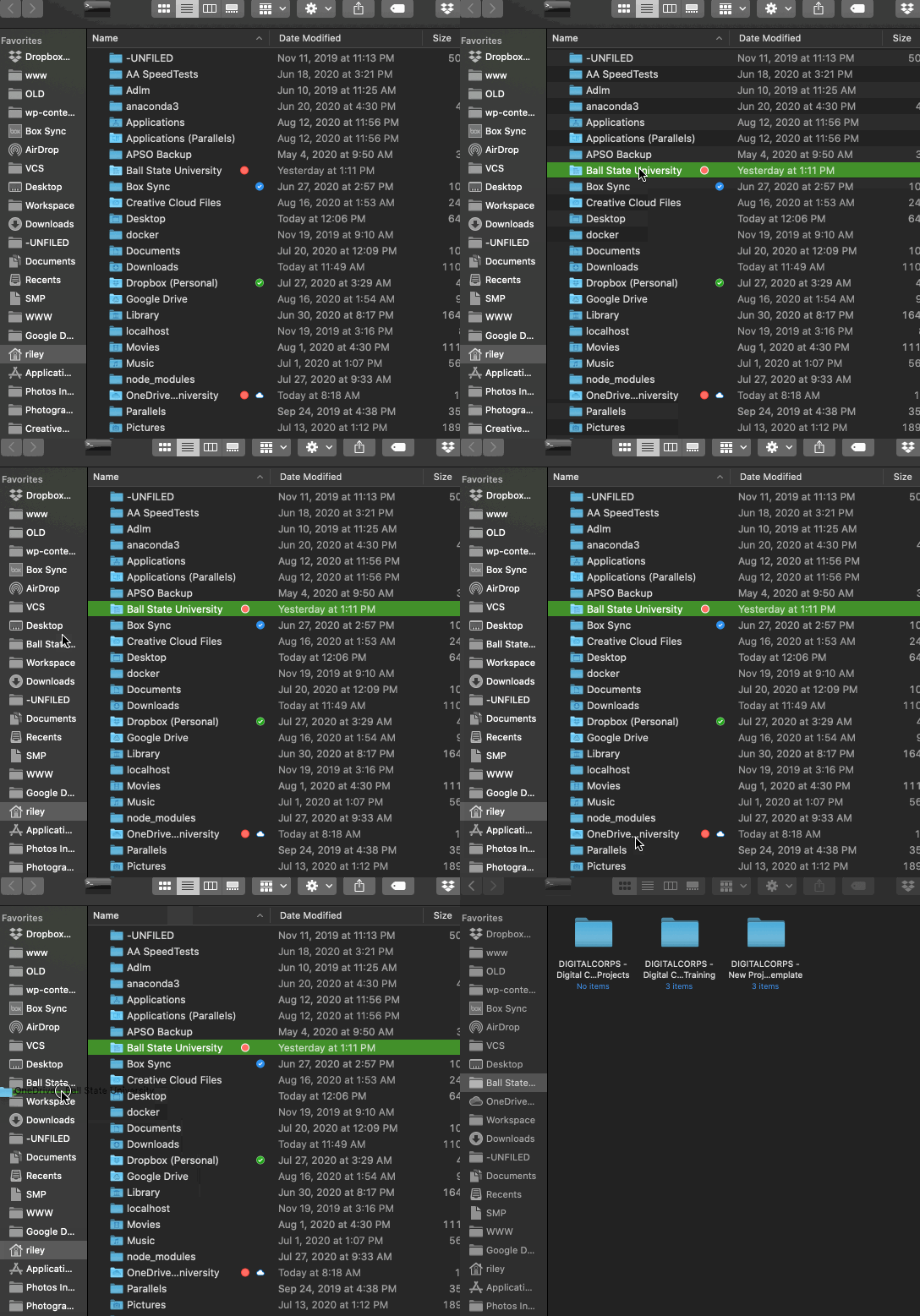
To ensure that your folders are syncing correctly, click on Ball State University from the left side of Finder. Next, click on DIGITALCORPS – <FOLDER NAME>. This will list the folders you’ve selected to sync.
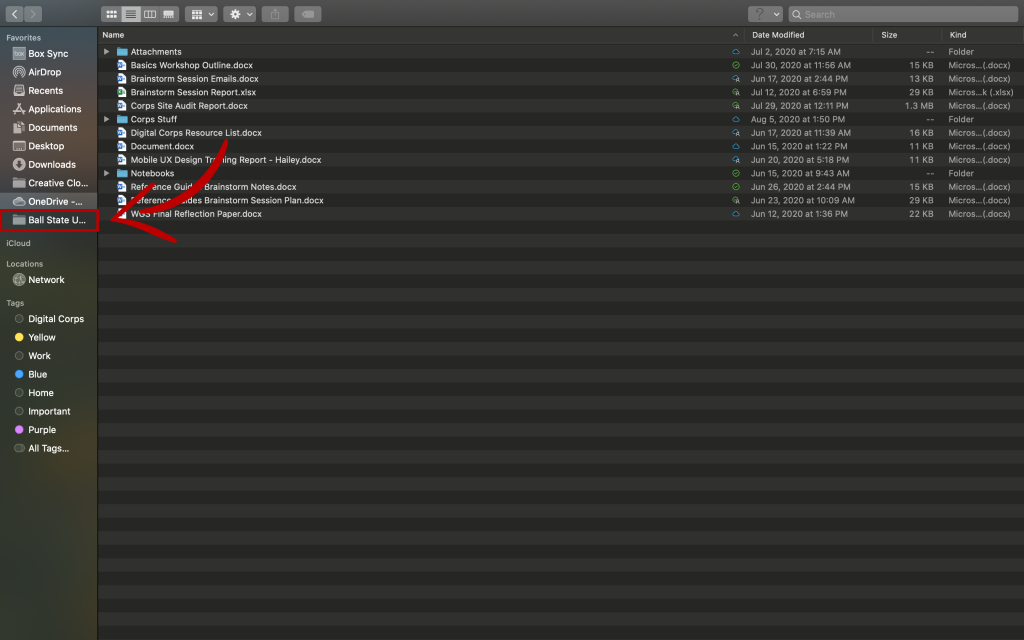
If quick access shortcuts are not added automatically to Finder, they can easily be created by dragging folders to the left sidebar.
You have successfully set up OneDrive on your computer. If you run into any problems, contact one of the staff members above.
Some other notes:
- Installing OneDrive for the first time? Restart your computer to enable the right-click options and the Finder OneDrive icons
- Initial tests show the sync process is faster than Box! Whoo hoo! Plus, the overall experience is more similar to Dropbox, for those of you who remember the Golden Age of cloud storage.
- Remember – if you delete something on your local drive, IT WILL DELETE IT FROM ONEDRIVE. So, don’t delete files and folders – unsync them.
- If you have any issues with OneDrive, message Mike with specific details as to what went wrong. Send screenshots when possible.
