Installing PhpStorm with an Educational License

Quick Tip!
Your JetBrains student license expires every year. Set a reminder on the expiry date (found on your license card) to renew your license. As long as your Ball State email is valid, renewal will be fast and easy.
Helpful Staff for this Topic

What is PhpStorm?
PhpStorm is a cross-platform IDE, developed and licensed by JetBrains, for PHP and web developers. It provides an editor for PHP, HTML, JavaScript, and other web languages.
It includes helpful features such as code refactoring, auto-completion, and a zero-configuration Visual Debugger. As a student, you can access PhpStorm and all its features for free using a student license, the following steps will illustrate how.
Get a Student License
Visit the JetBrains Products for Learning page to apply for a license using your Ball State email address. This is the easiest method, however, other options for authentication are offered at the top of the form. This tutorial will focus on the email option though.
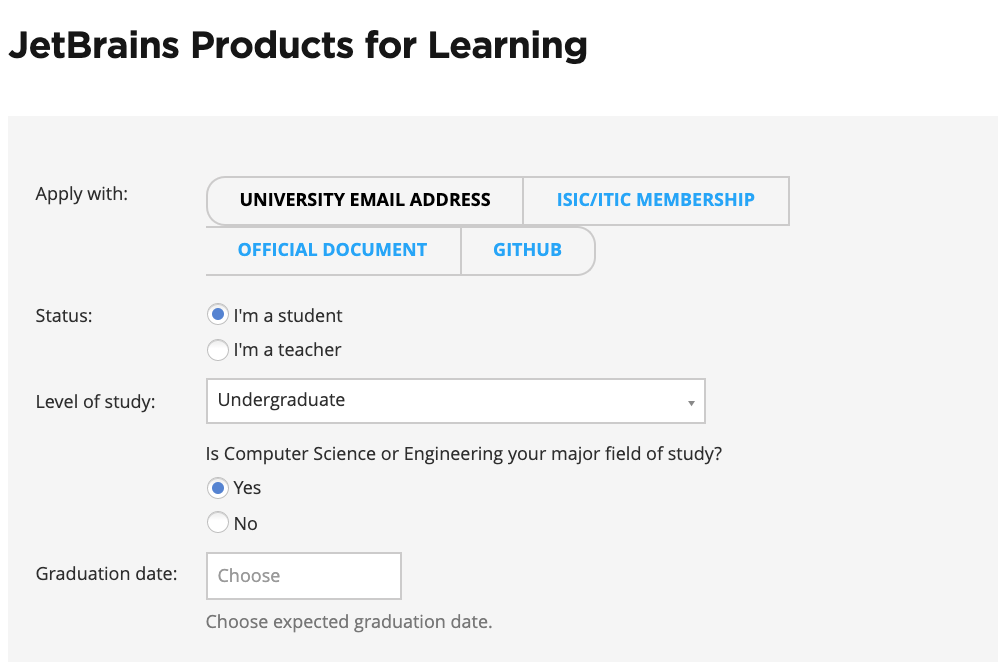
Complete the form with the necessary information and select the Apply for Free Products button at the end. You should then receive an email from JetBrains with a confirmation link that redirects you to the subscription agreement contract.
Once you’ve carefully read through it and accepted the terms, you will receive another email requesting you to complete your JetBrains account registration. Follow the link in the email to the corresponding registration form and provide the username and password of your choice.
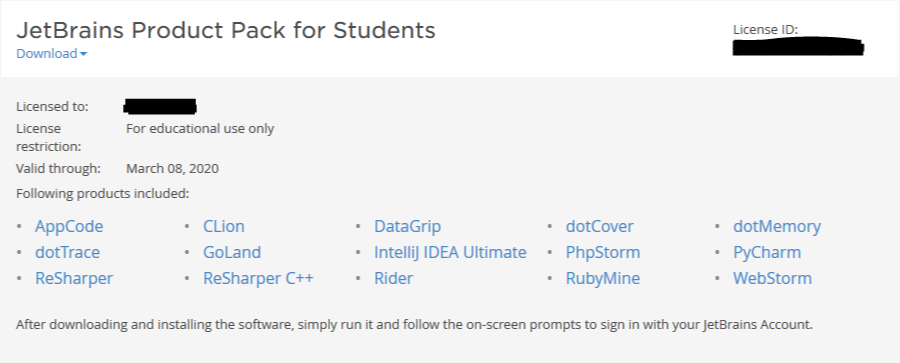
After you submit the form, JetBrains will direct you to your license card which should look similar to the image below.
Install and Setup PhpStorm
Proceed to the JetBrains PhpStorm webpage and click the Download Now button at the top of the page to begin the automatic installation. Upon opening PhpStorm for the first time, you will be prompted for login information to activate the license.
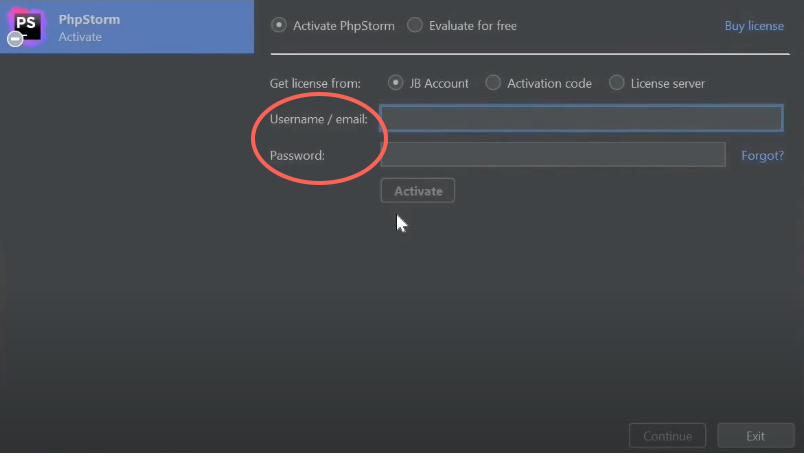
Enter the email/username and password that you registered for the JetBrains account earlier. After clicking Activate, your PhpStorm setup will be complete.
Congratulations! You can now use PhpStorm for any web development projects at the Digital Corps.
