Kronos

Quick Tip!
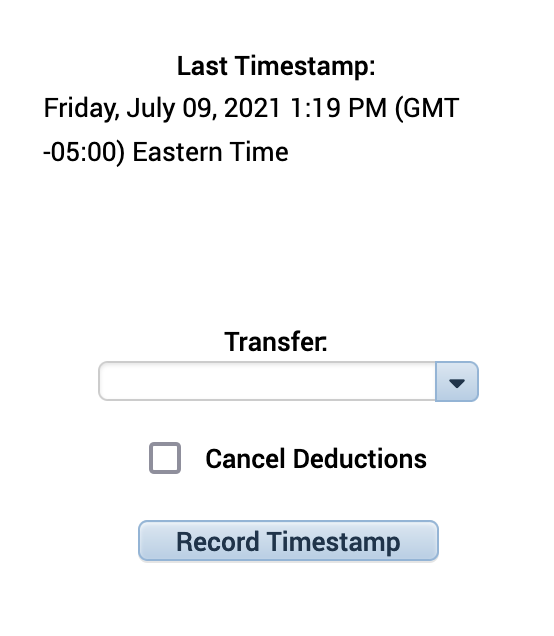
When clocking out, DON’T select a transfer code. If you do, you will create a Double Punch which will require an Adjustment Form.
Helpful Staff for this Topic





Kronos is a timekeeping software used at Ball State. When it’s time to clock in or out, click ‘Record Timestamp’ on the left side of the screen. The time should then be recorded in your schedule.
Follow this link to Kronos to log your hours by clocking in and out.
When clocking in, you will need to use a ”transfer code.” You can find this in the drop-down box that says ‘Transfer.’ However, when clocking out, this is not needed.
Quick Tip!
If you have worked at another job on campus before, you might have multiple items in the Transfer Code dropdown. The correct code for the Corps is a number that includes 999597. It may also say “VP for Information Technology.”
Kronos rounds to the nearest 15 minutes, so if you clock in at 12:58 PM, Kronos will record 12:58 PM in your time log, but it will register as you clocking in at 1 PM. This makes it easier to schedule your required hours by rounding each timestamp to the nearest 15-minute mark.
When Something Goes Wrong
Did you improperly clock in or out? Fill out a Kronos Adjustment Form and send it to your team lead (Communication and UX Team members should send their forms to Brandon).
